This feature is not yet supported for the JSON Schema config type.
Validation steps let you define rules to validate the workflow’s data and supports your most complex business logic.Rules are defined using formulas that transform and calculate data similar to most spreadsheet applications you are familiar with.
Formulas can reference classification, extraction, and instruct QA step outputs, as well as data fetched from your systems using an External Data Validation step.
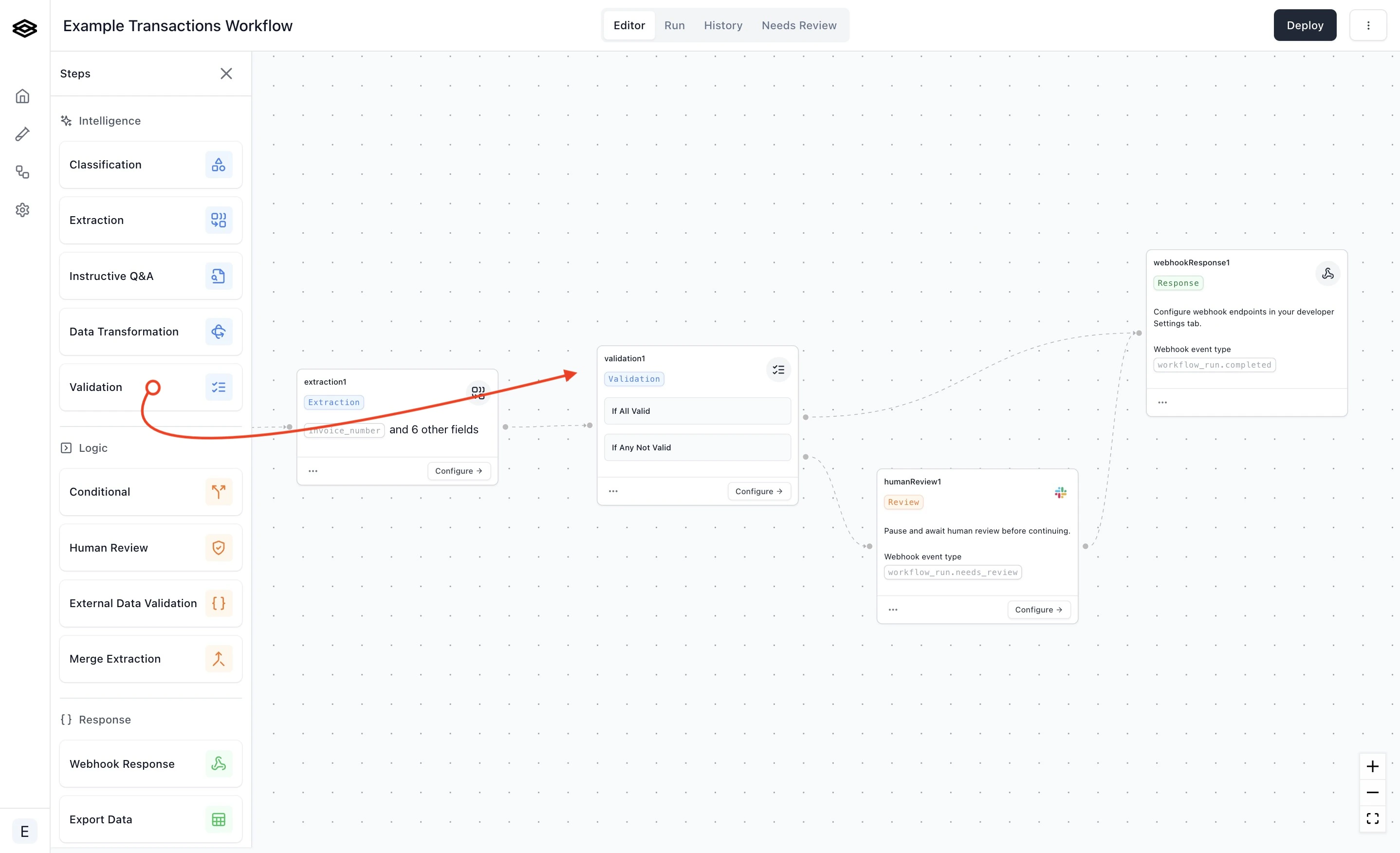
Start by dragging a Validation step into your workflow.A Validation step has a single input step which simply determines when to run the validation.
Rules can reference data from all steps that come before it, so you do not need to directly connect a step to the Validation step to validate that step’s outputs.A Validation step also has two output steps, one if all the rules pass and one otherwise.
Only one of the two output steps will be executed for any single workflow run.
An example workflow topology is to connect the Webhook Response step if all rules pass and a Human Review step if not.
Click on a Validation step’s Configure button to configure the step’s rules.
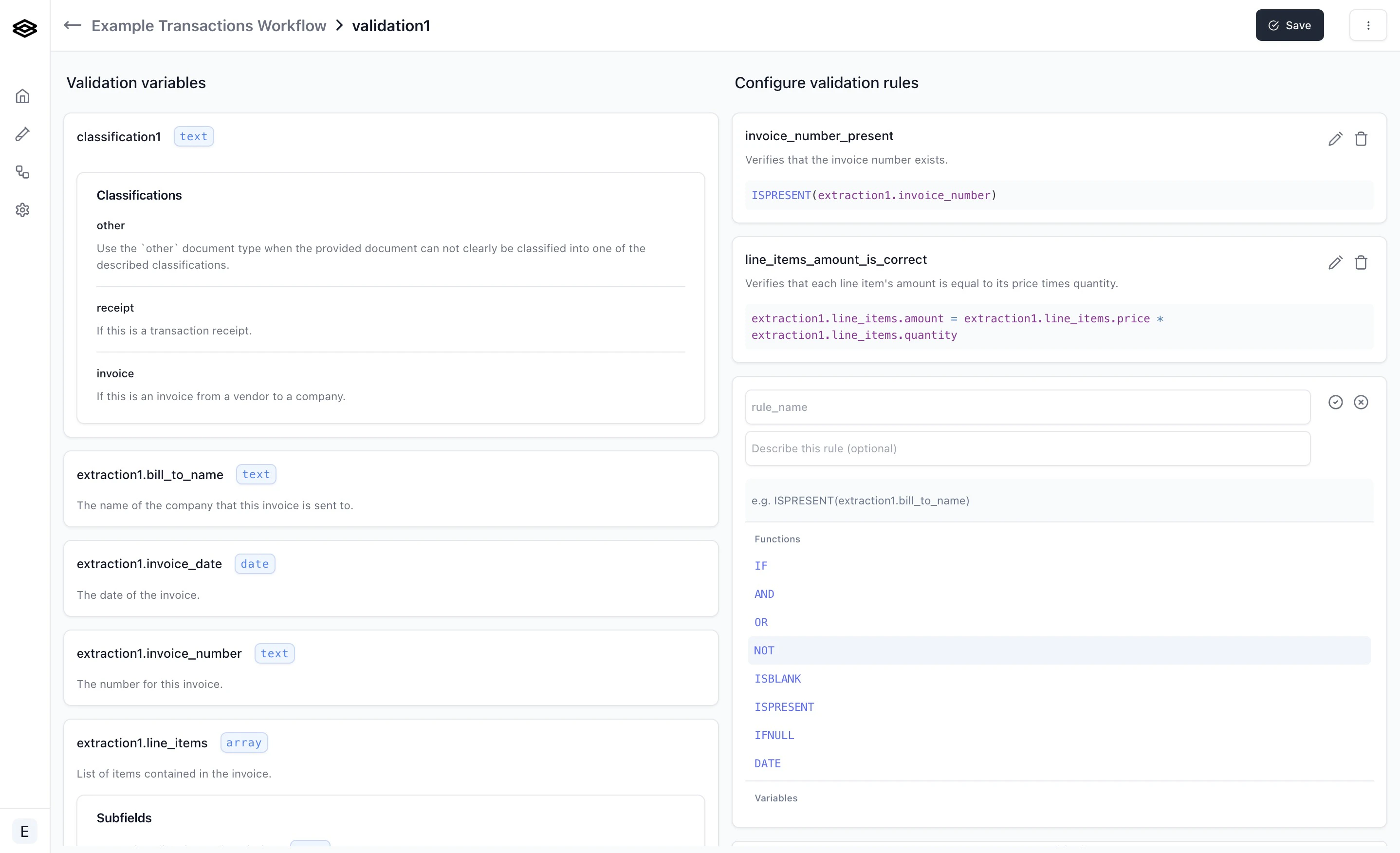
The configuration page shows the variables that can be referenced in formulas on the left side and the defined validation rules on the right side.To add a new rule, click the Add rule button on the bottom of the right side of the page.
To edit an existing rule instead, click the edit icon (pencil symbol) in the top right corner of the rule.
A rule has the following fields:
Formula expression that must evaluate to a boolean value. See
Formulas for details about formula
syntax and functions.
Once you are satisfied with this rule, click the accept icon (checkmark symbol) to convert the rule back to viewing mode.
If you want to undo your changes to an existing rule or remove a newly added rule, click the decline icon (cross symbol) instead.When you are finished adding or editing rules, save your changes by clicking the Save button on the top right corner of the page.
Important: Do not forget to save your changes! An edited, but unsaved rule
will have no effect on your workflow.