

Builder
Once you have created an Extraction processor, navigate to the “Build” tab.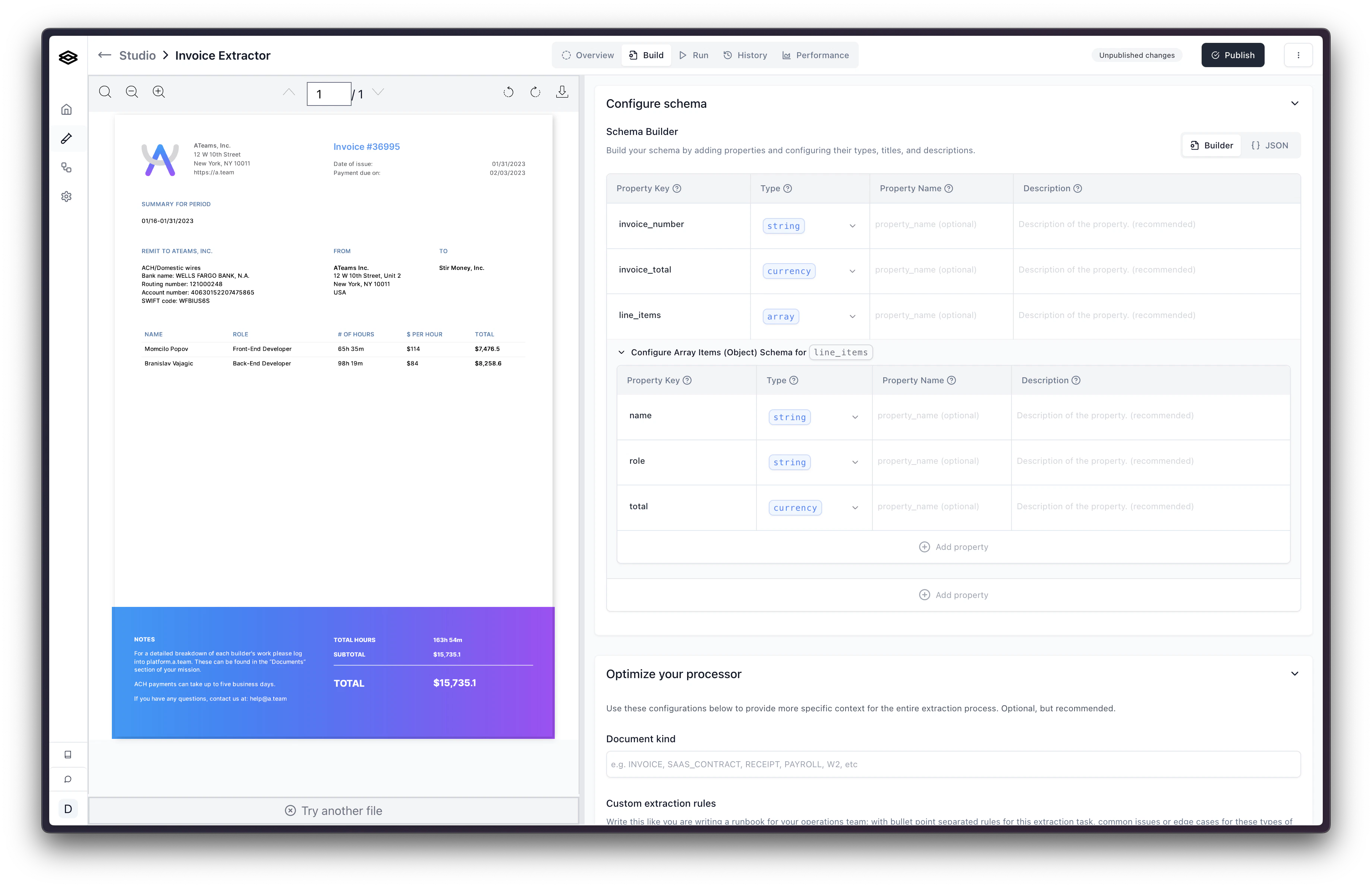
Configuring Properties
This section is relevant for processors using the JSON Schema config type. If
you are using the legacy Fields Array config type, please see the Configuring
Fields
documentation. If you aren’t sure which config type you are using, please see
the Migrating to JSON
Schema documentation.
Property Types
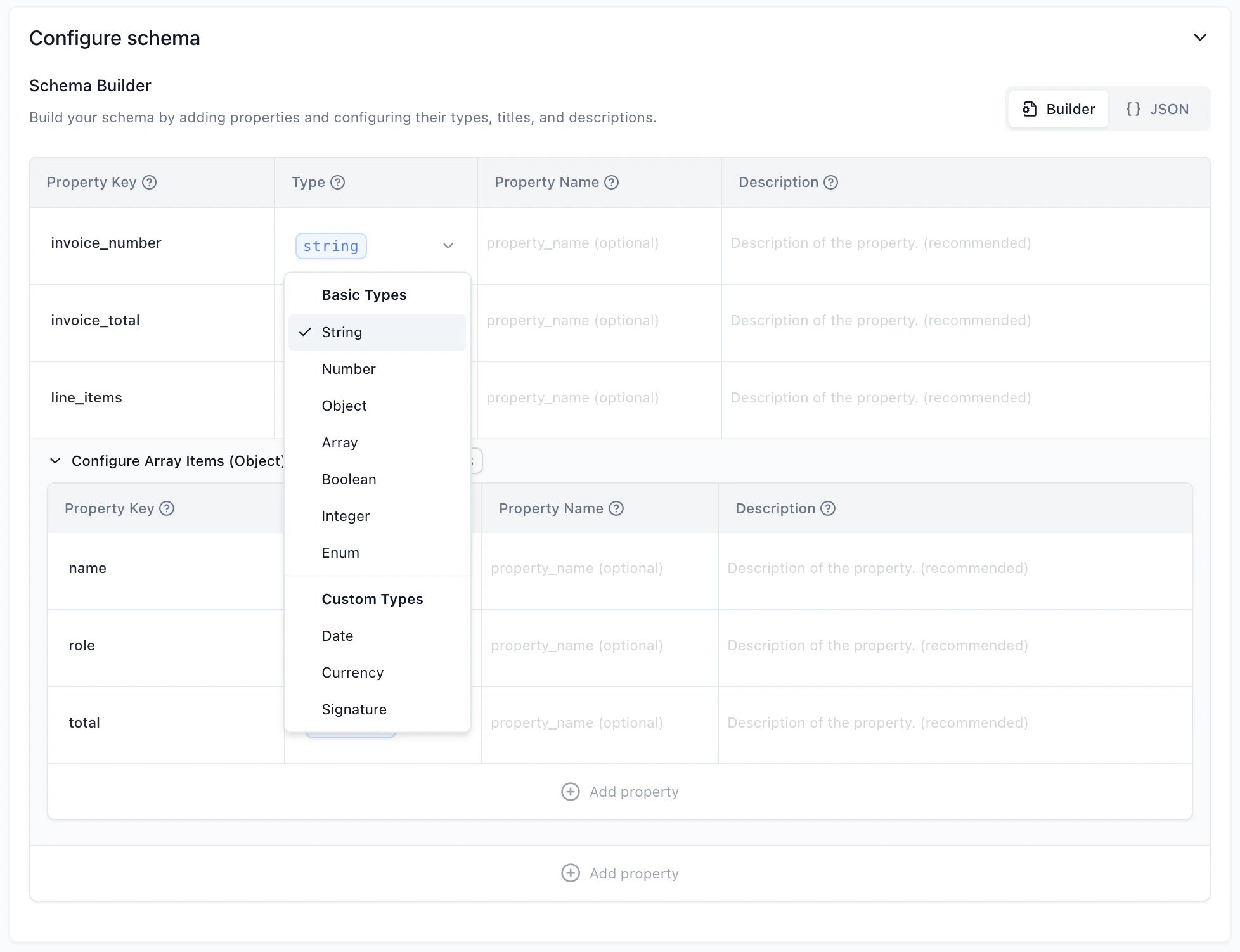
The following property types are supported:Basic Types
- String: Used for text values.
- Number: Used for numeric values.
- Boolean: Used for true/false values.
- Integer: Used for whole number values.
- Enum: Used for fields with a predefined set of string values.
- Object: Used to group related fields together.
- Array: Used for lists of items.
Custom Types
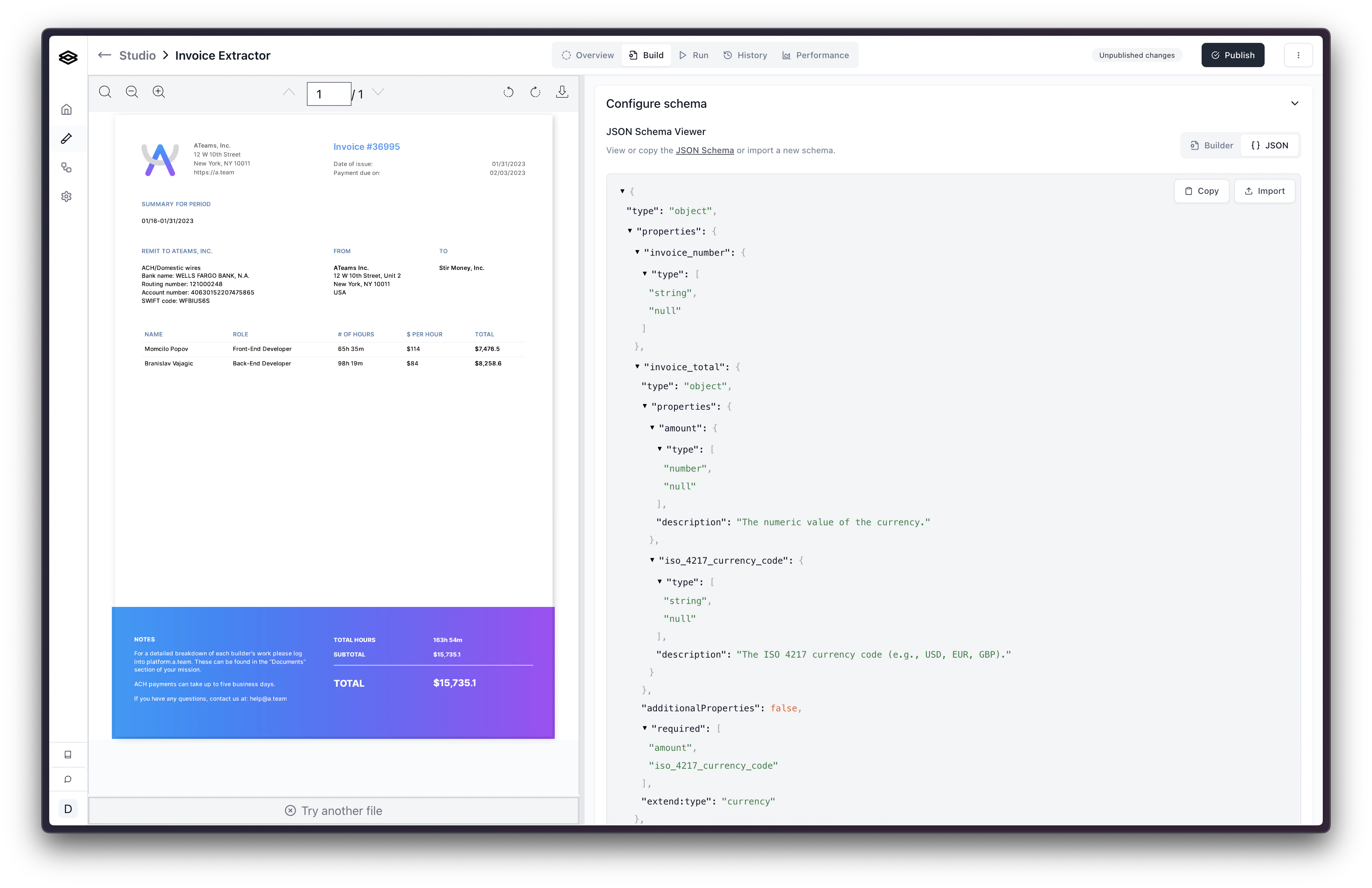
Custom types are extensions of the basic types with added validation, formatting, and processing logic.- Date: A string type that ensures ISO compliant date format (yyyy-mm-dd).
- Currency: An object containing currency details including:
- amount (number)
- iso_4217_currency_code (string)
- Signature: An object containing signature details including:
- printed_name (string)
- signature_date (date)
- is_signed (boolean)
- title_or_role (string)
Configuring Fields
This section is relevant for the Fields Array config type. If you are using
the JSON Schema config type, please see the Configuring
Properties
documentation. If you aren’t sure which config type you are using, please see
the Migrating to JSON
Schema documentation.
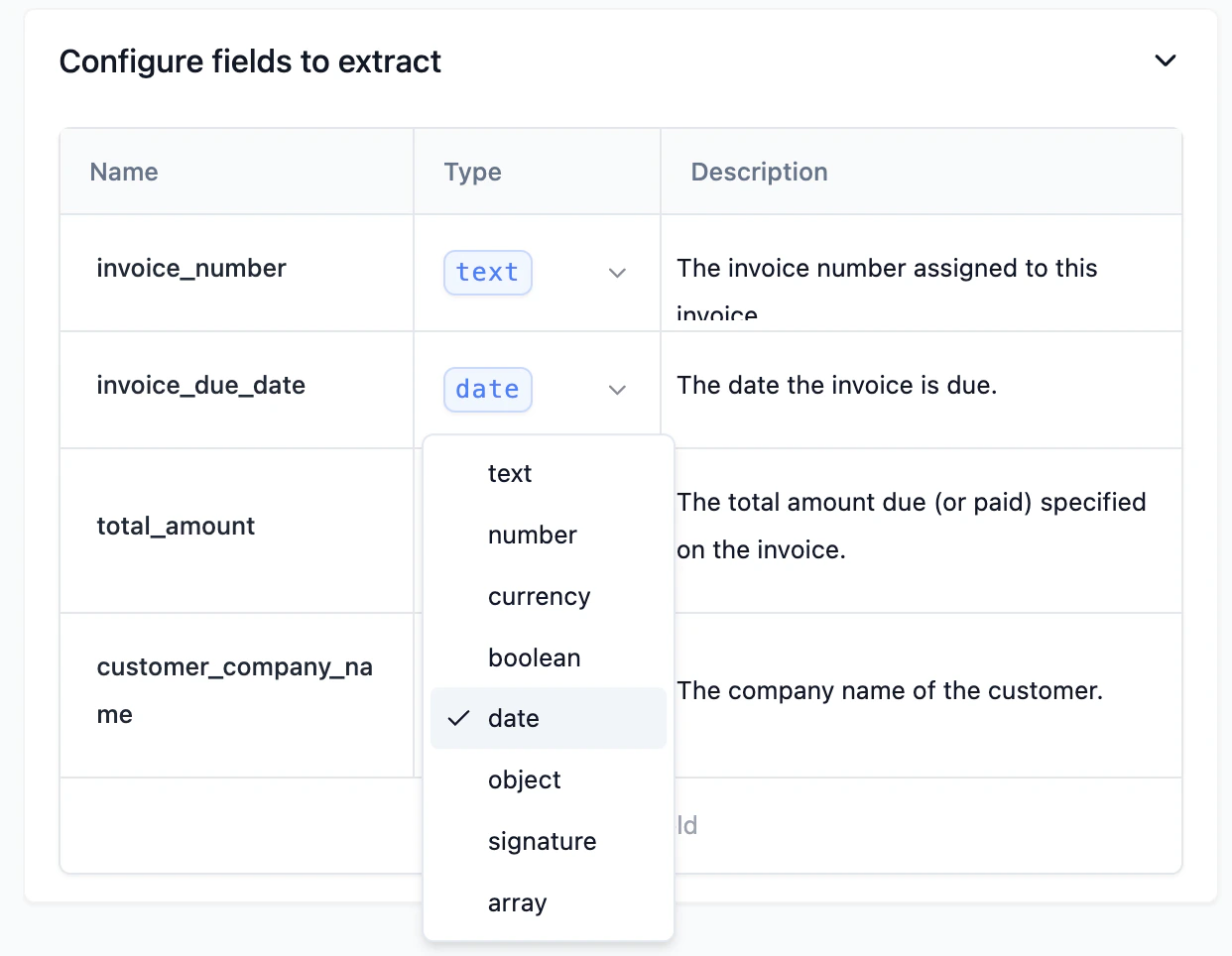
Text
Use the text data type when you want to extract a string of text from a document. For example, if you want to extract the name of a person from a document, you would use the text data type.Number
Use the number data type when you want to extract a number from a document. For example, if you want to extract the age of a person from a document, you would use the number data type.Currency
Use the currency data type when you want to extract a currency value from a document. For example, if you want to extract the price of a product from a document, you would use the currency data type.Boolean
Use the boolean data type when you want to extract a boolean value from a document. For example, if you want to extract whether a product is in stock from a document, you would use the boolean data type.Date
Use the date data type when you want to extract a date from a document. For example, if you want to extract the date of birth of a person from a document, you would use the date data type.Signature
Use the signature data type when you want to extract a signature from a document. For example, if you want to extract the signature of a person from a document, you would use the signature data type. Signature fields will automatically extract all relevant details of a document’s signature block:- is_signed
- printed_name
- signatory_title
- signature_date
Object
Use the object data type when you want to extract a set of related fields from a document. For example, if you want to extract the address, name, and birth date of a person from a document you would use the object data type.Array
Use the array data type when you want to extract a list of related fields from a document. For example, if you want to extract a list of products that each have a name, price, and quantity from a document you would use the array data type.Configuration table
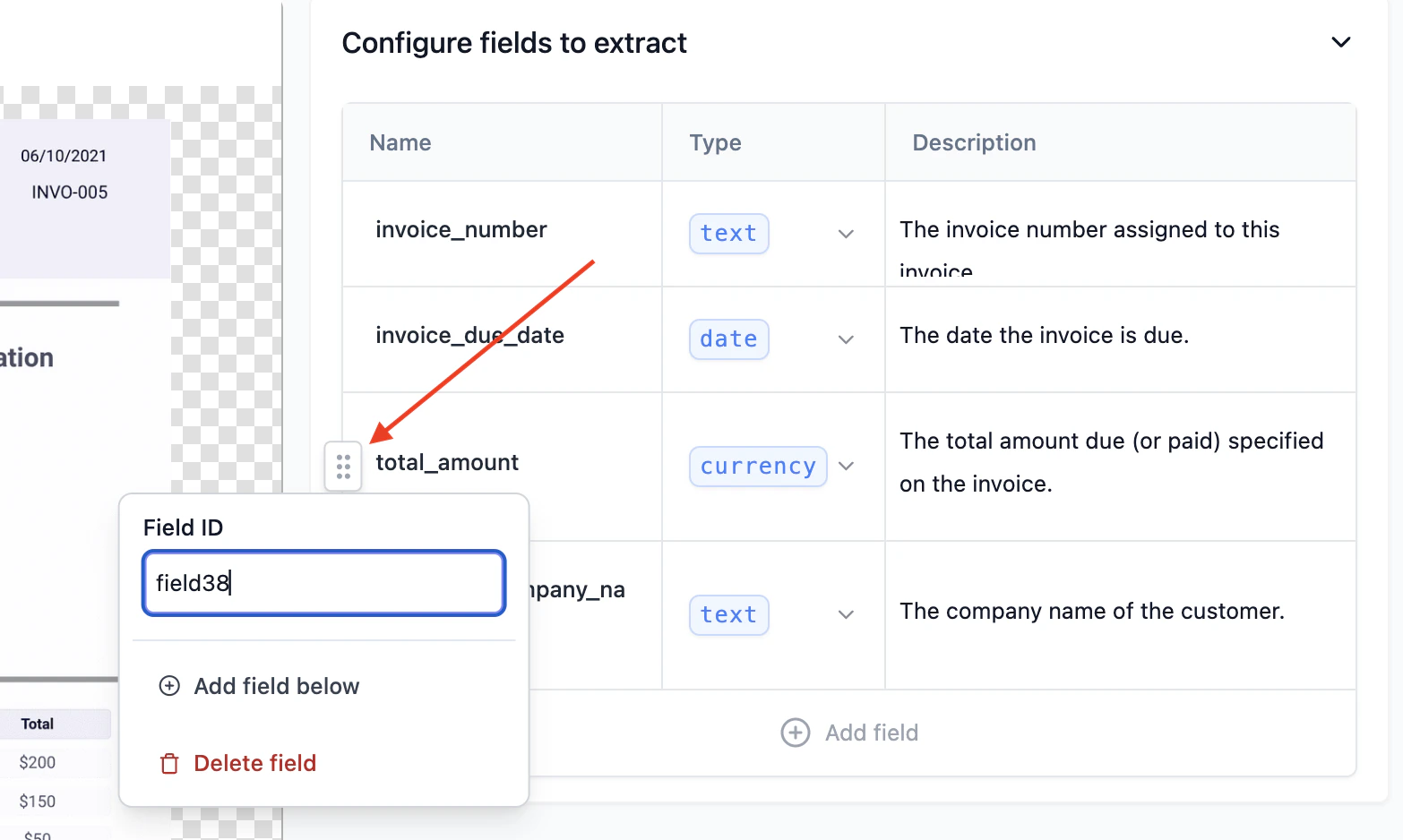
The field config table also will allow you to select the drag button to move the field up or down. Performance is best when related fields in the document are positioned in related order in the configuration table.The below documentation about field
IDs is relevant for the legacy Fields
Array config type. This is not relevant for the JSON Schema config type.ID which is a unique identifier for the field to use in your downstream system, so that you can make changes to the semantic field name without
updating your downstream system.
Configuring Custom Settings
In addition to the fields, you can also configure custom settings for each field. These settings allow you to further customize the extraction process to better suit your specific needs. However, please note that these settings are experimental and may not work as expected in all cases. Before using these settings, we recommend consulting with the Extend team to understand their potential impact on the extraction process.Using the Run tab
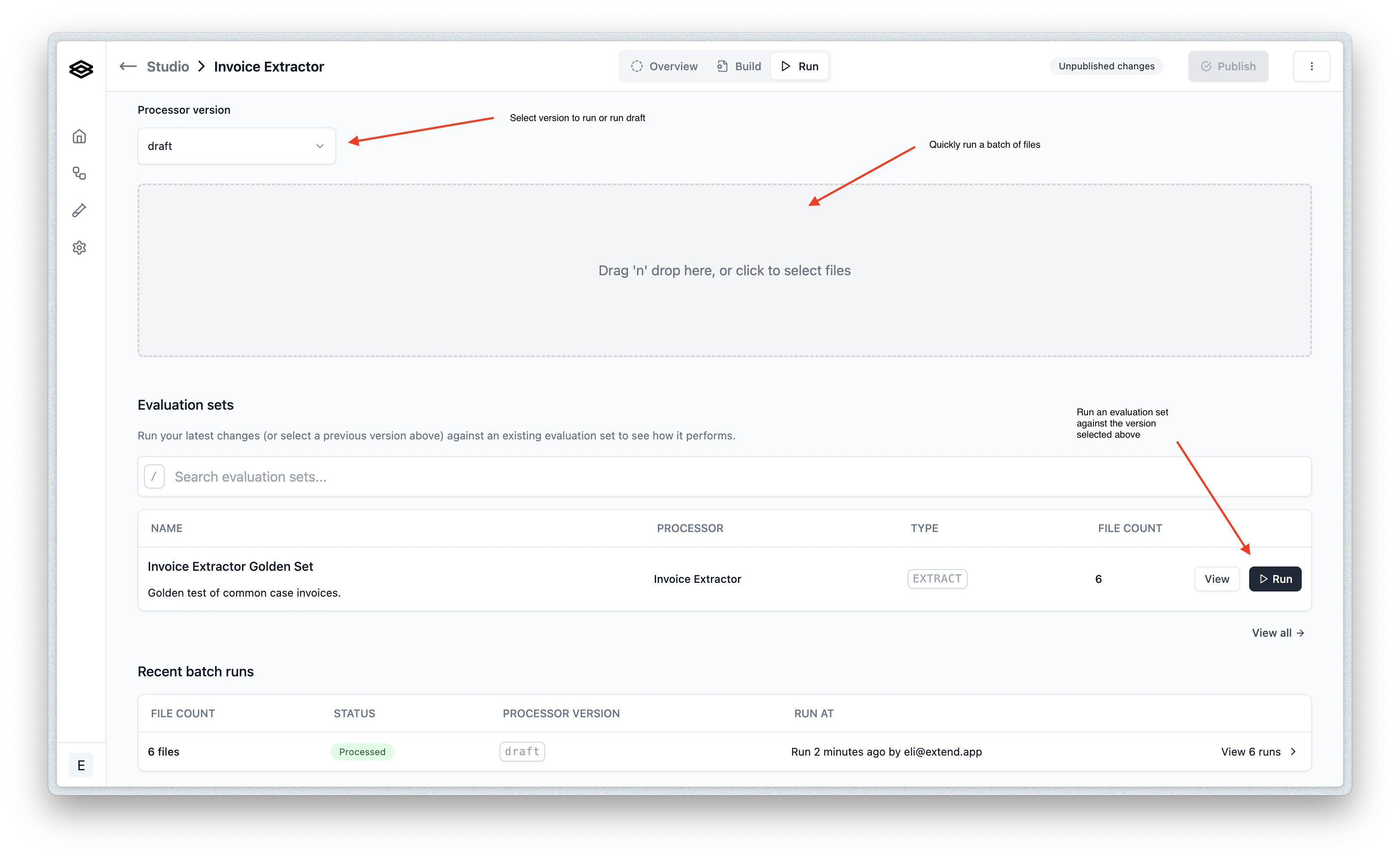
While it often makes sense to run files from the “Build” tab when getting set up, once you are ready to start testing your processor at scale, you should move over to the “Run” tab. From this tab you can:- Quickly run any number of files in a batch (supported file types can be found here)
- Select the version of the processor you want to run (or default to the saved draft version)
- Run an existing Evaluation set for the processor
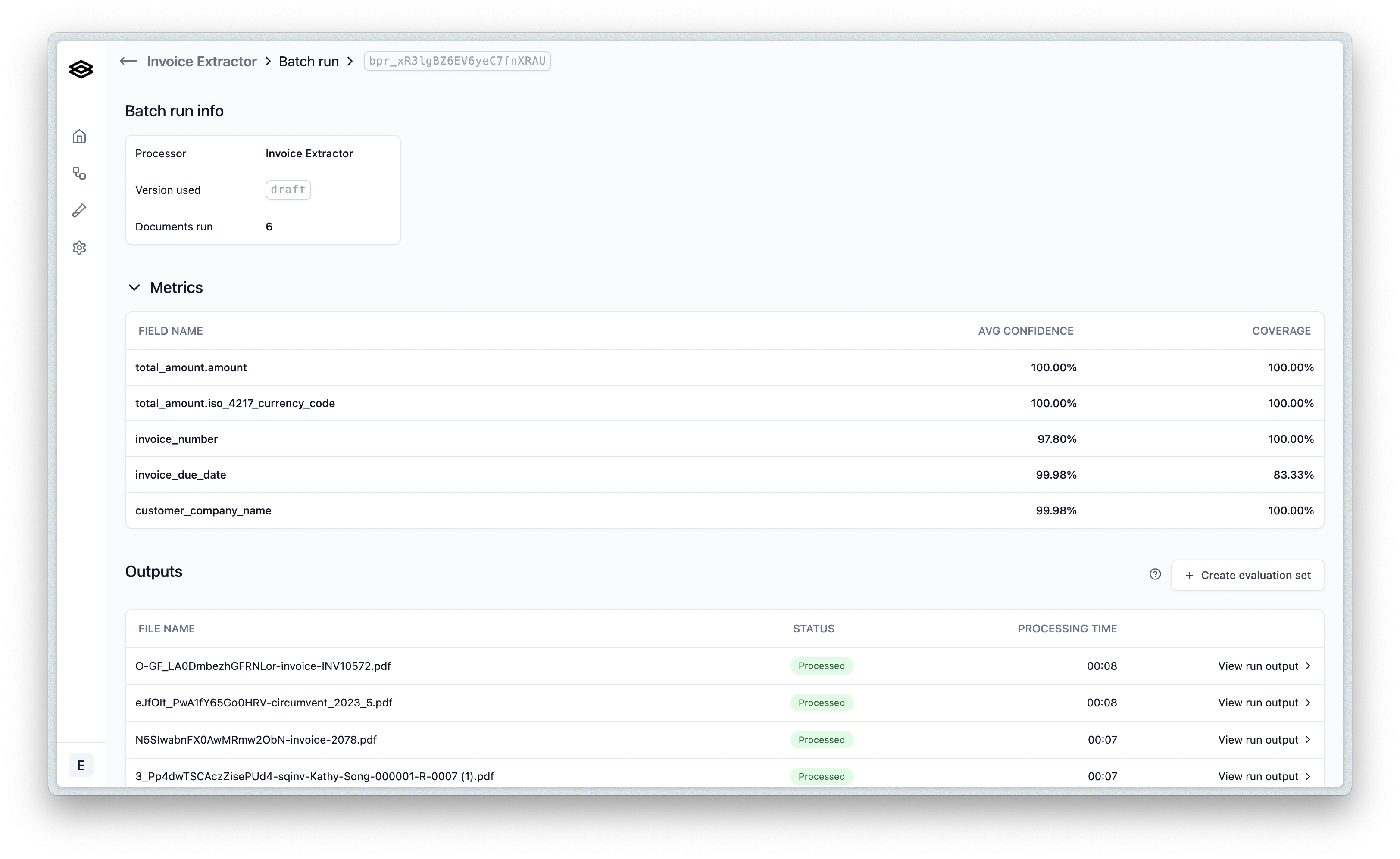
- See at a glance the coverage of fields extracted and average confidence
- Drill down into individual files to see the extracted fields and confidence levels
- (optionally) correct/edit the results of each output, then turn the entire batch into an Evaluation set