
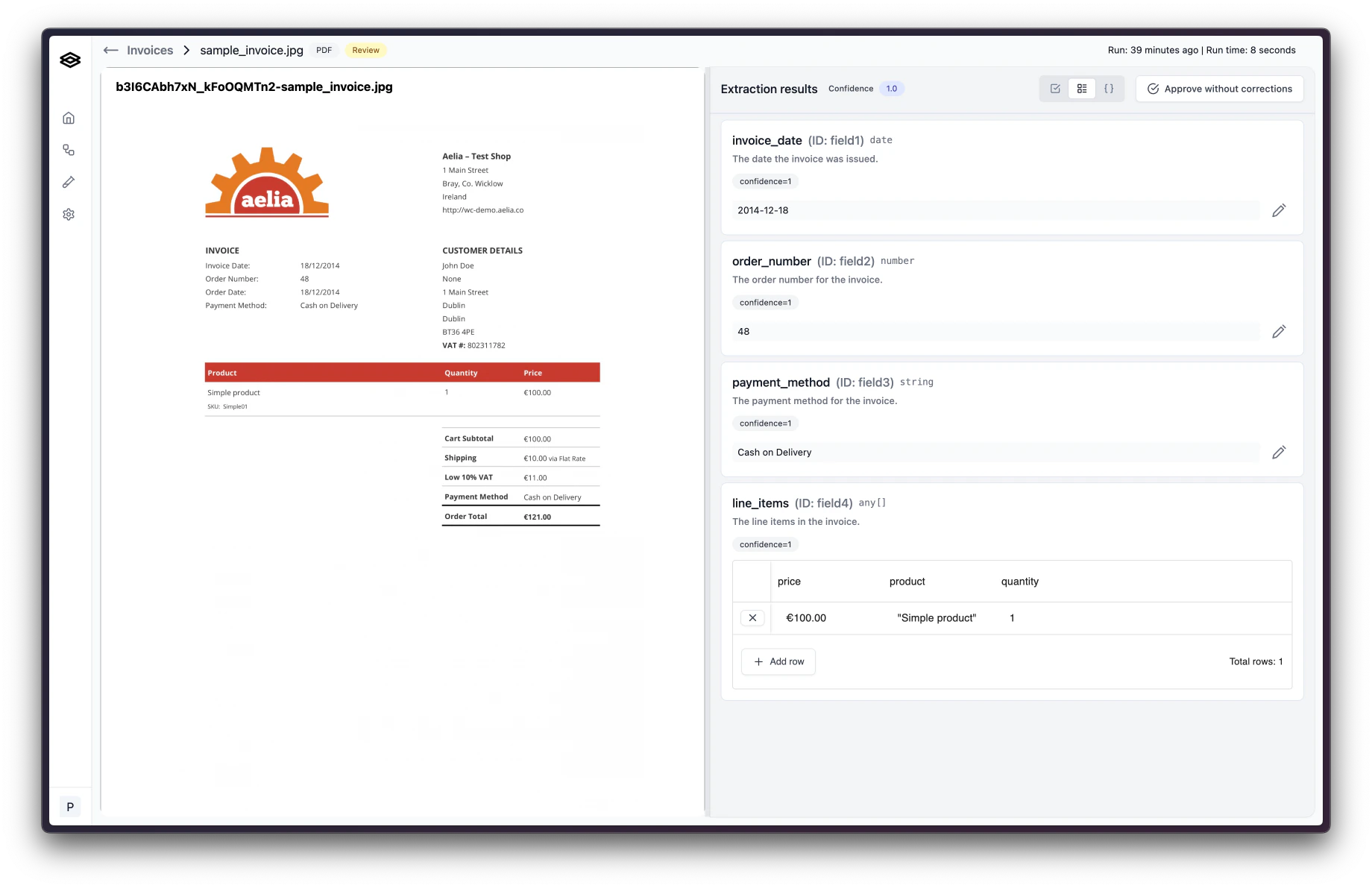
Editing and approving a Workflow Run
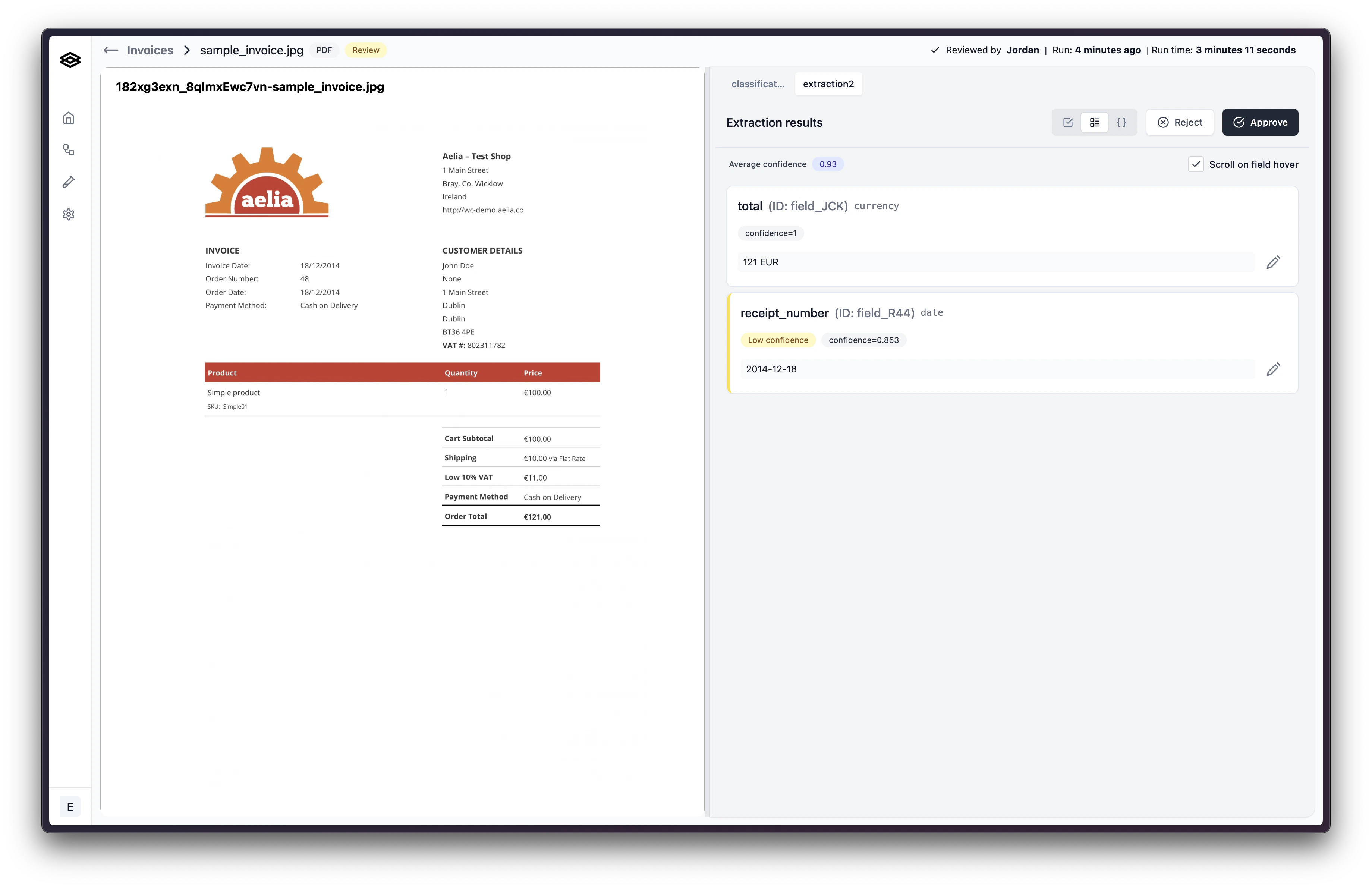
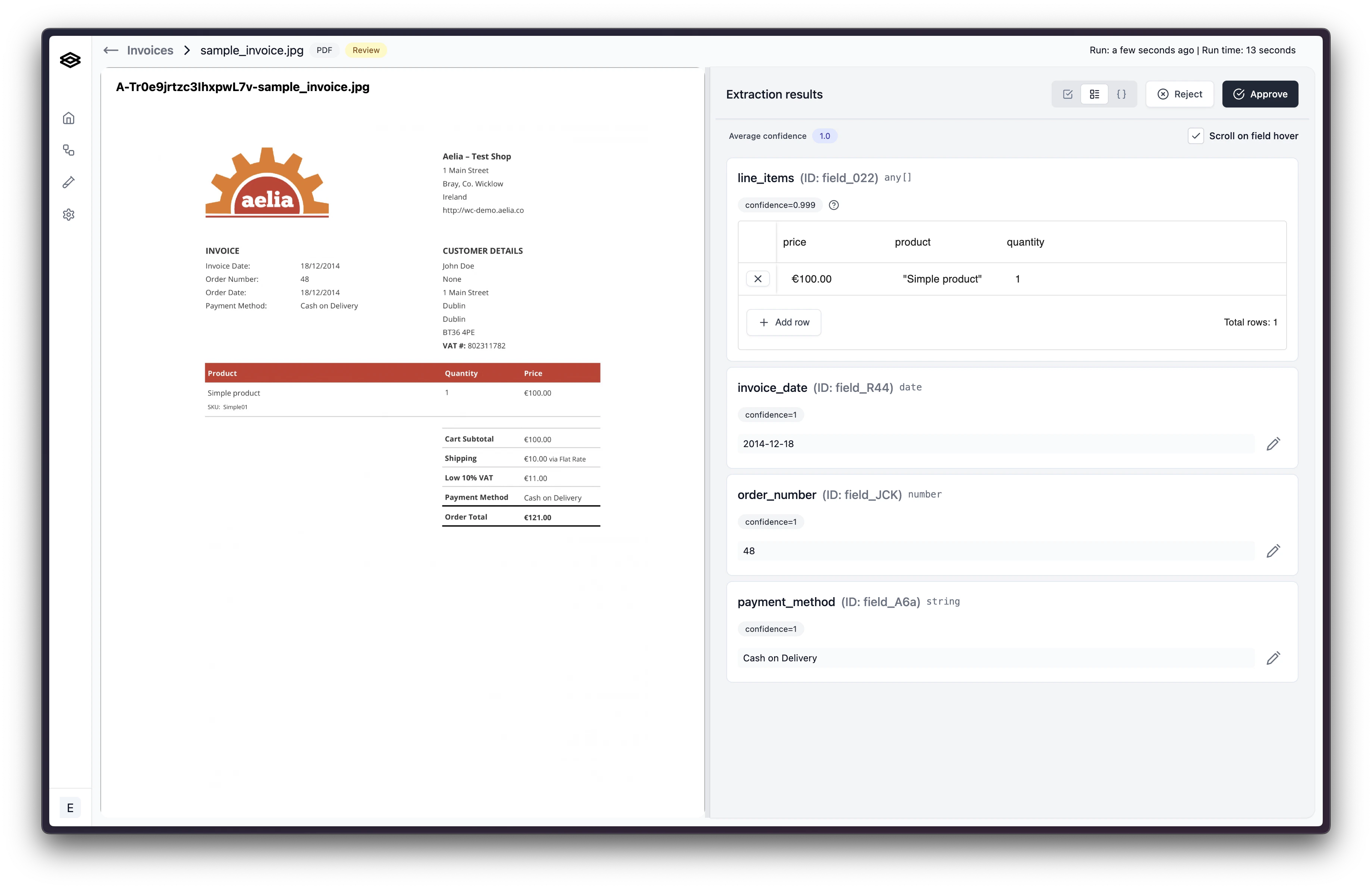
Check the extracted values to confirm they are correct. If you find an extracted value that is not correct, click the pencil button to start making a correction. For array fields, you can double click on the cell that needs correcting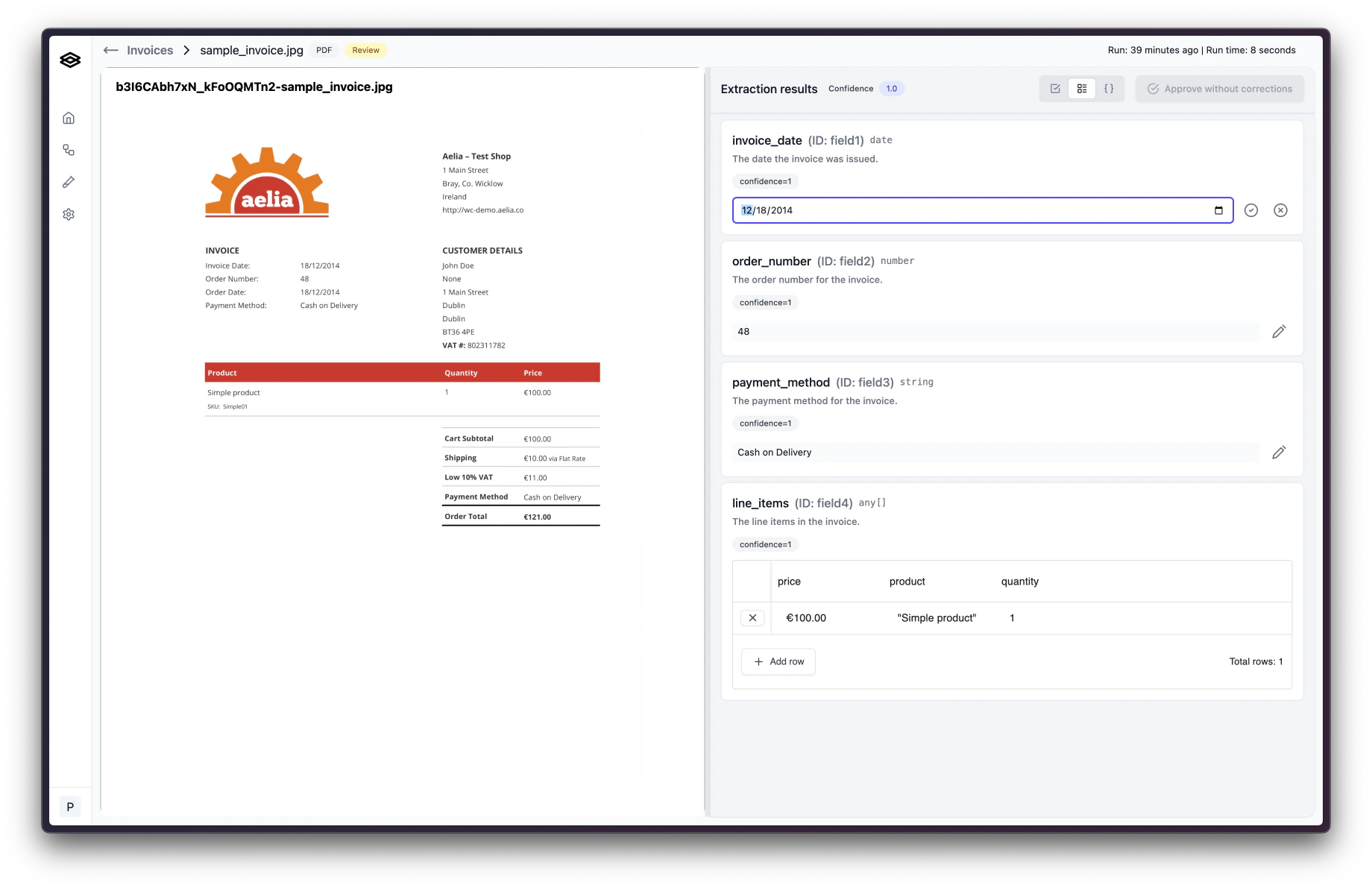
null.
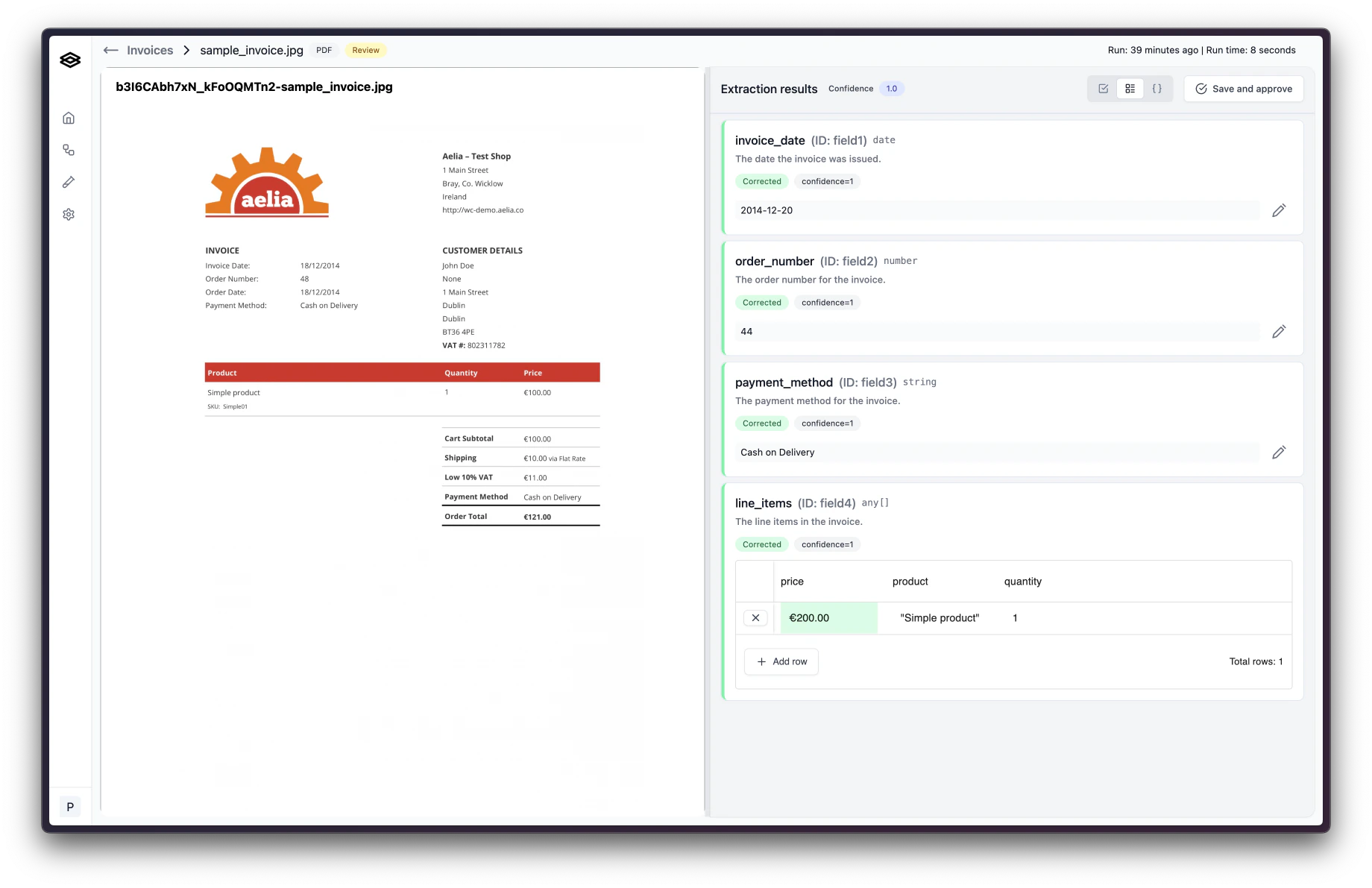
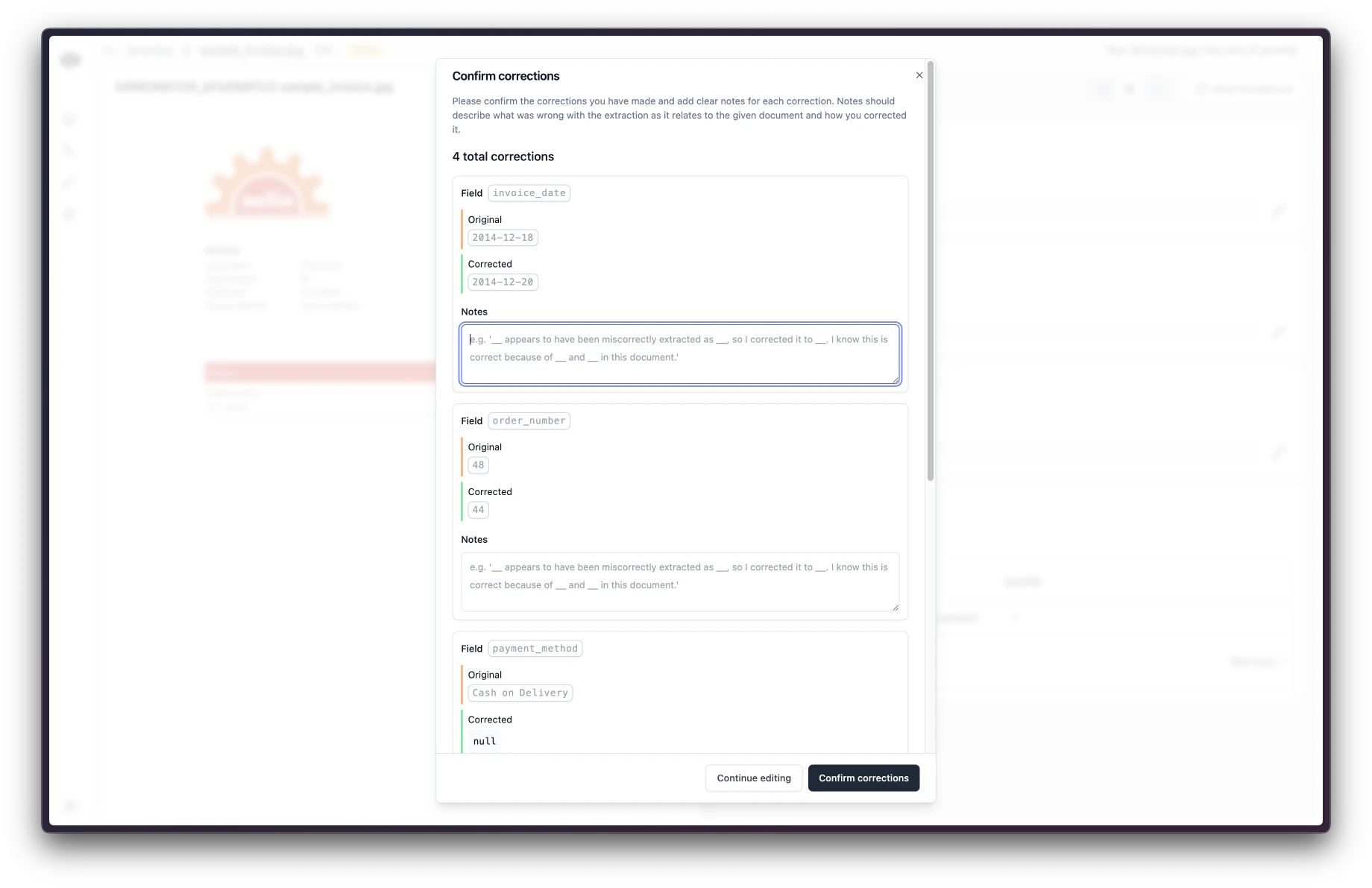
Rejecting a Workflow Run
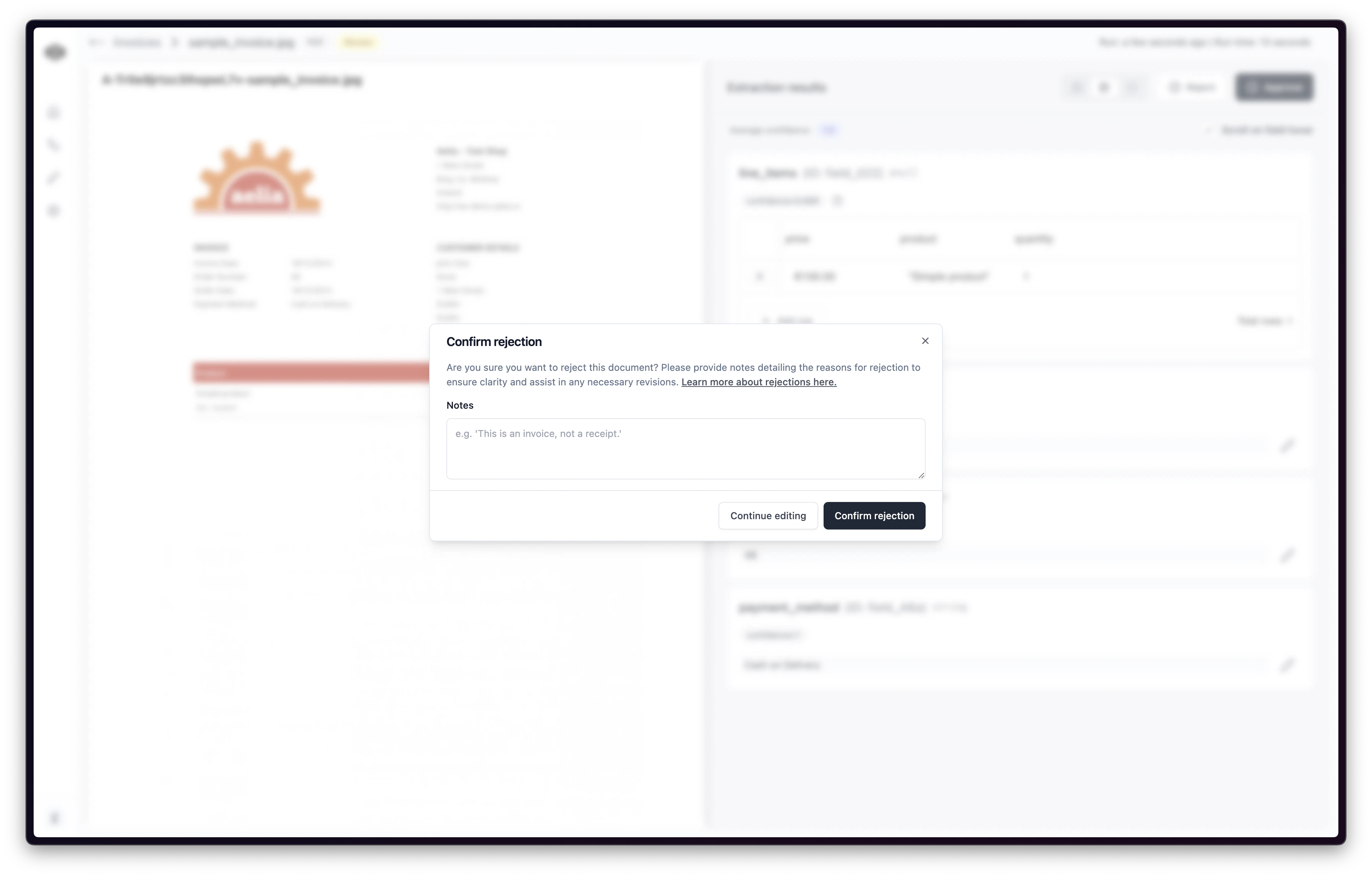
If a workflow run is rejected, it will not trigger subsequent steps and the final processed data will not be sent to your downstream systems. However, developers can still consume rejected run data by listening for theworkflow_run.rejected event which is listed in the webhook events.
If you find that the document is not valid and should not be processed further, you can reject the workflow run. To do this, click the “Reject” button in the top right corner of the review page.
Re-classifying a Workflow Run
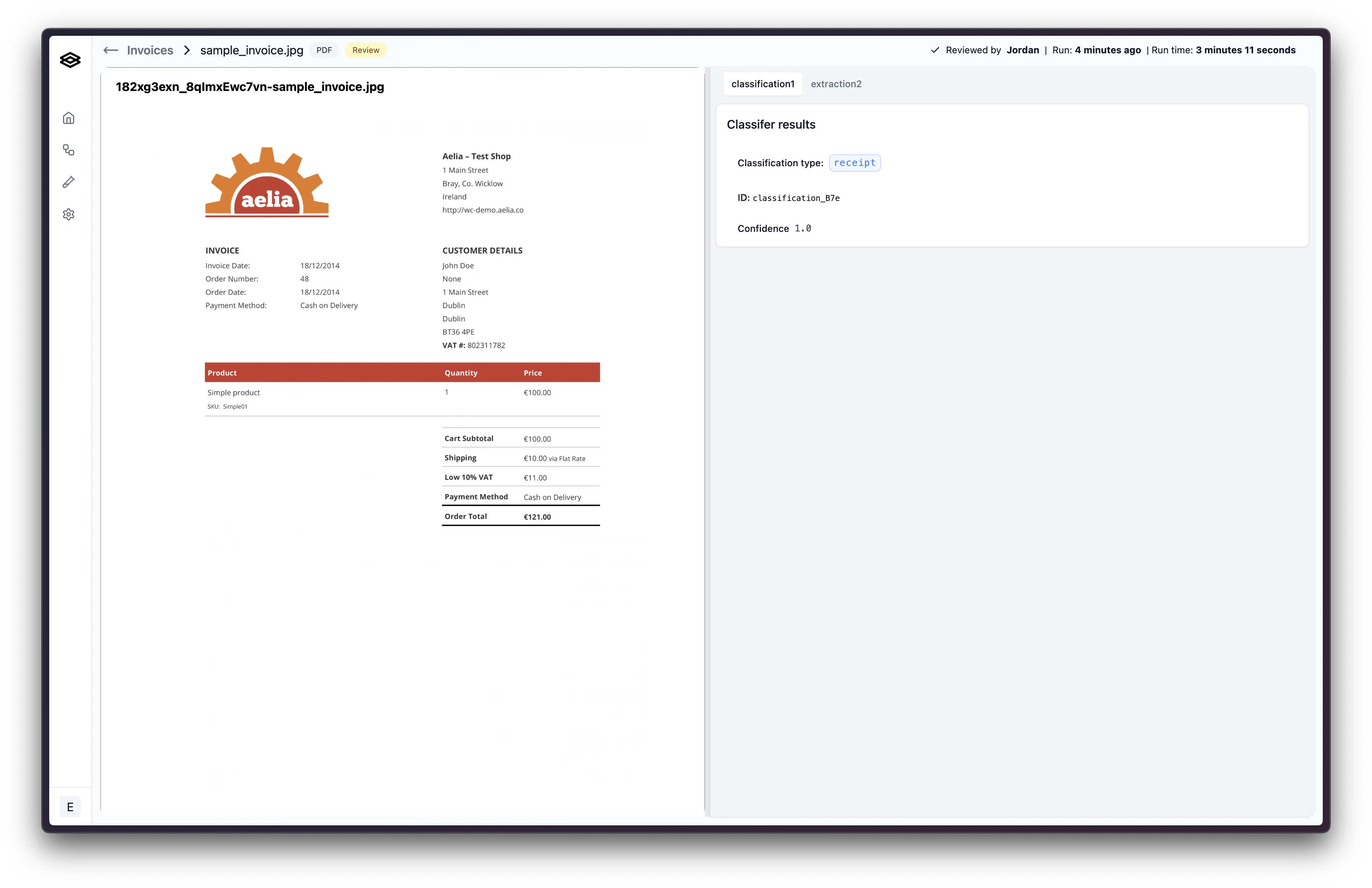
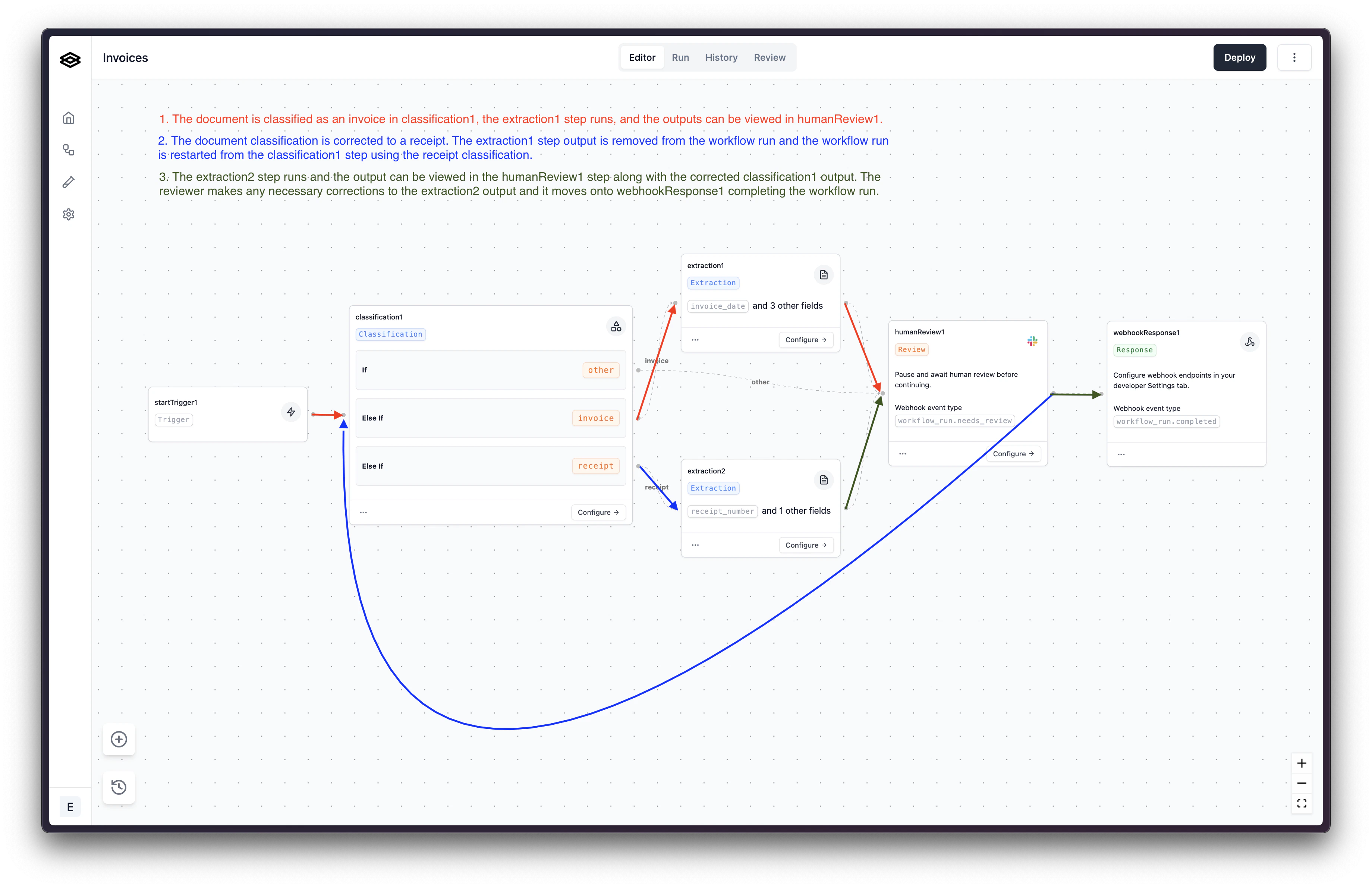
If a document was classified incorrectly, it can be reclassified during human review. To do this, select a new classification value from the dropdown and click “Save and re-classify”. Upon confirmation, the document will be re-classified and the workflow run will be restarted at the classification step using the corrected classification. Please note: Re-classifying a document will cause previous step runs stemming from the incorrect classification to be removed from the workflow run. Let’s walk through an example using the workflow below.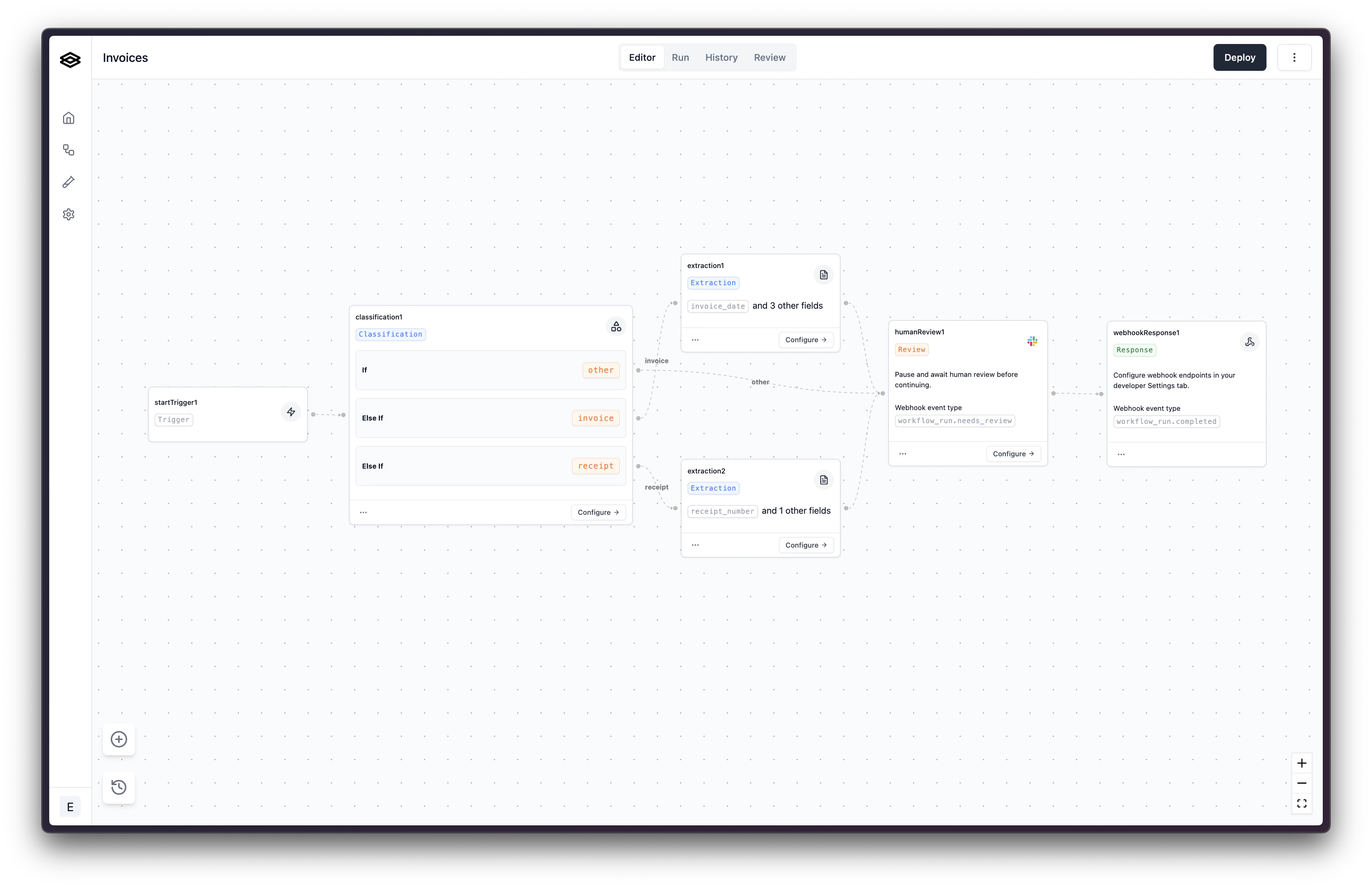
invoice in the classification1 step before being sent to humanReview1. Although the document was correctly classified as an invoice, lets pretend it’s actually a receipt and we want to fix that classification.
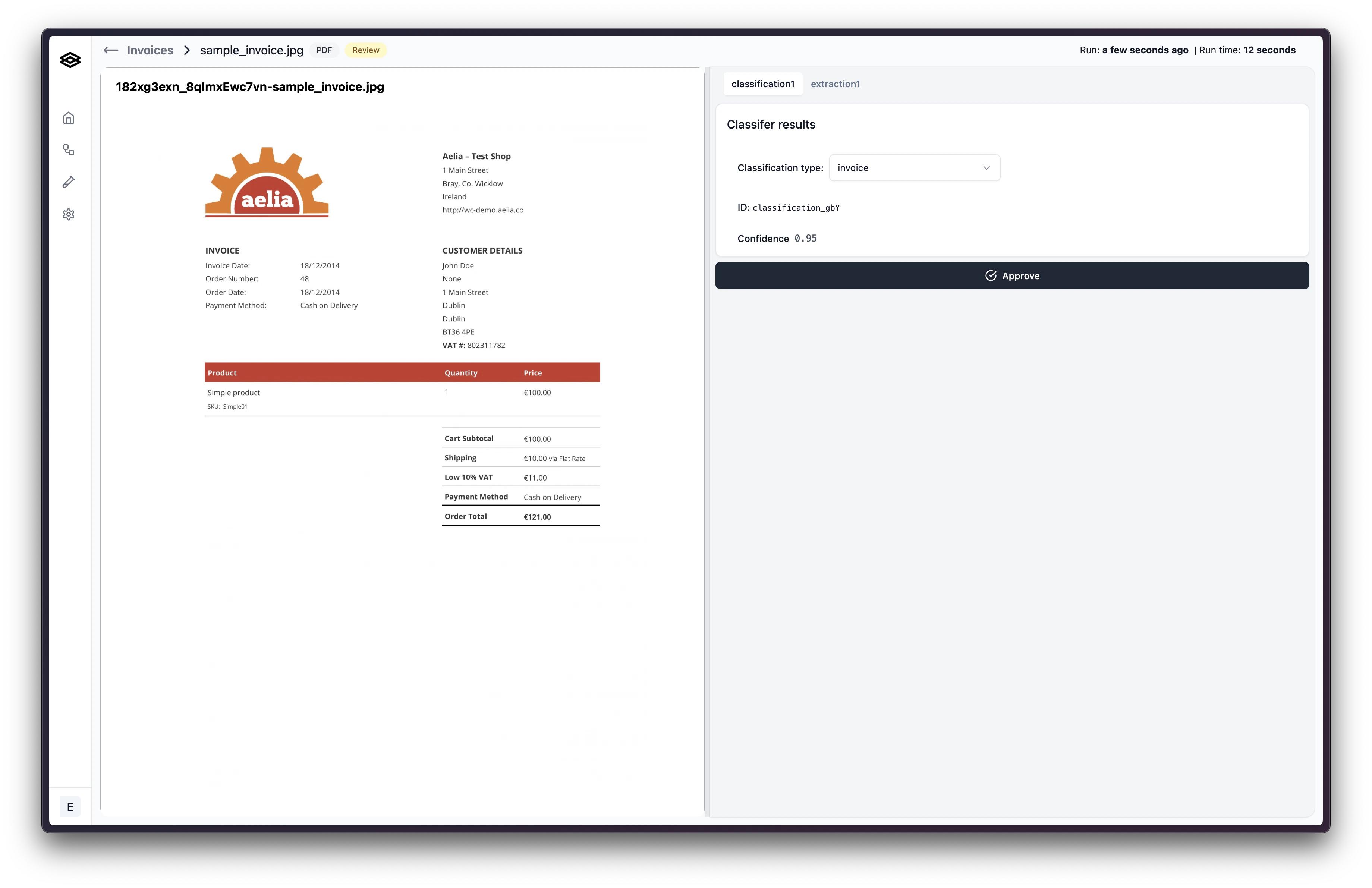
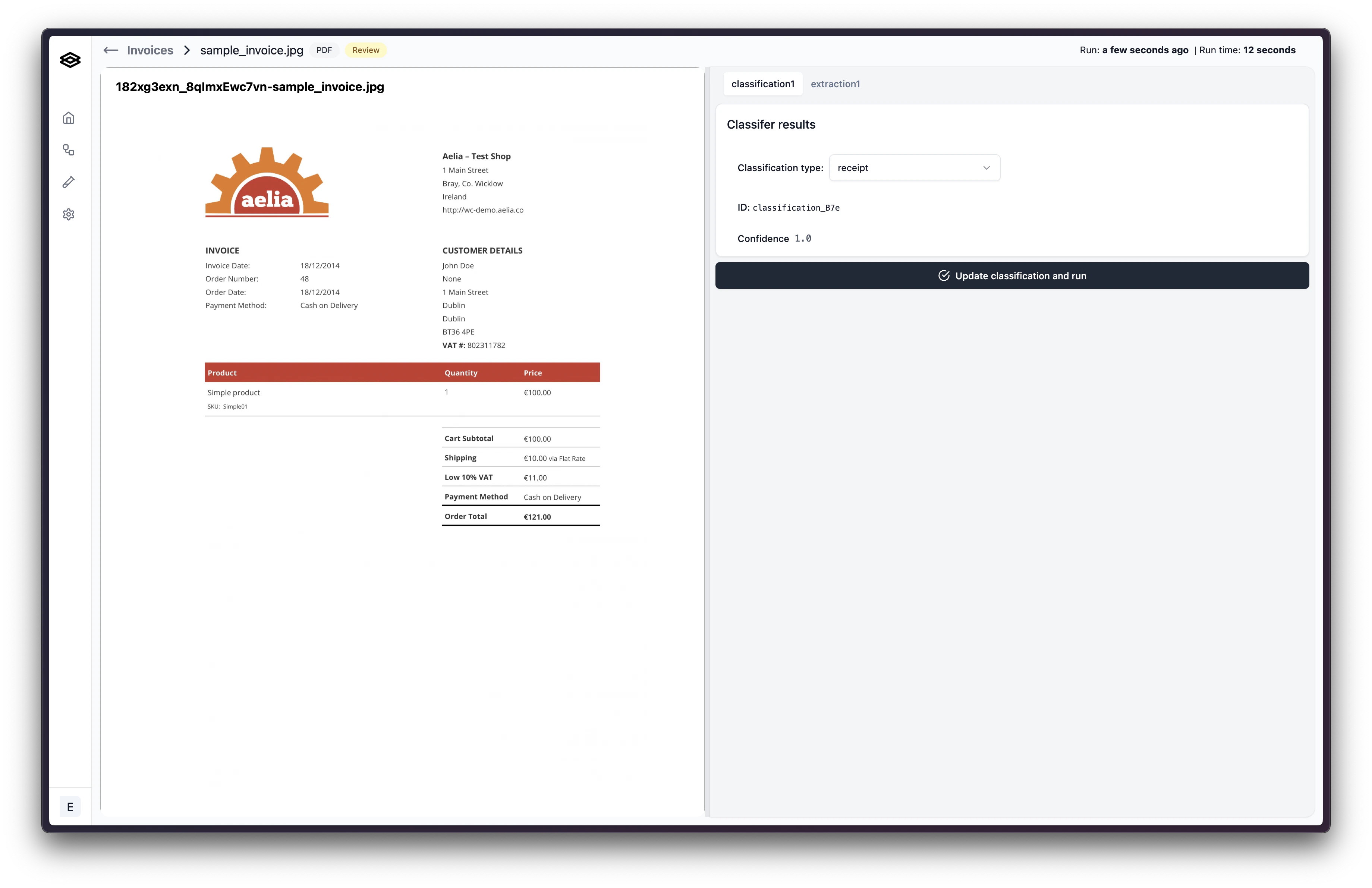
receipt, the workflow run will be restarted at the classification1 step and the previous extraction step run extraction1 stemming from the incorrect classification will be removed from the workflow run. The document will then be processed by the extraction2 step and go into humanReview1 step again where the updated classification and output from extraction2 step can be viewed.