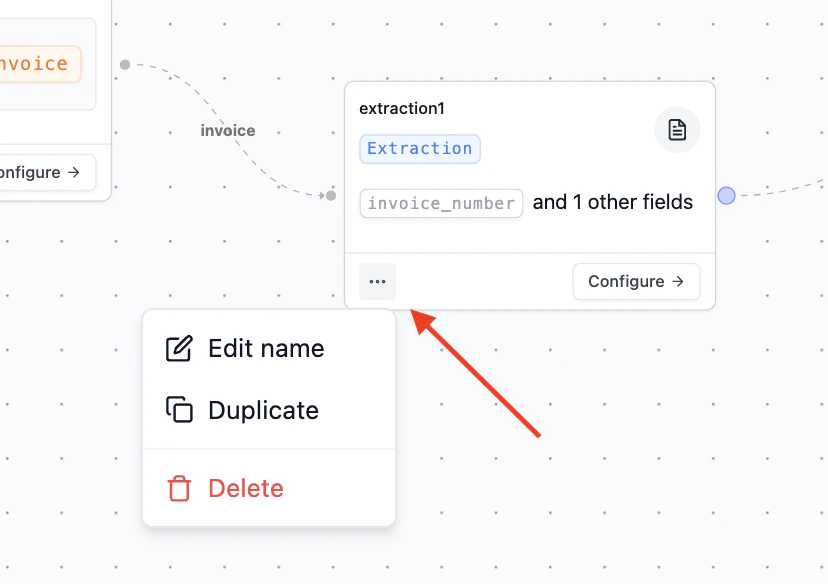

Step 1: Export the legacy processor
To start migrating a processor, first navigate to a workflow, and open the processor step you want to migrate. Remember, all of the following are “processor” steps: Extraction steps, Classification steps, and Instructive Q&A steps. Here is the workflow example we will migrating from: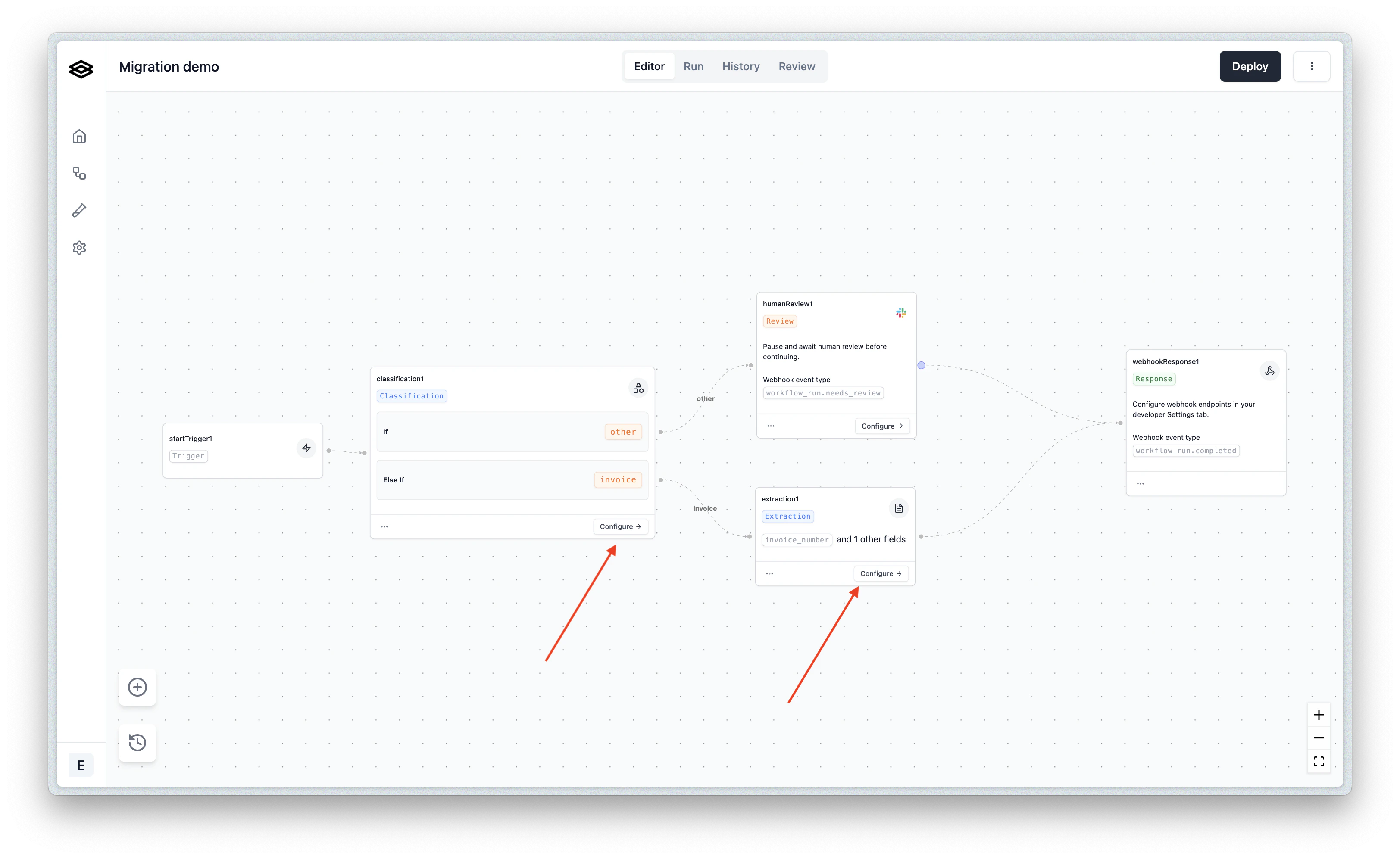
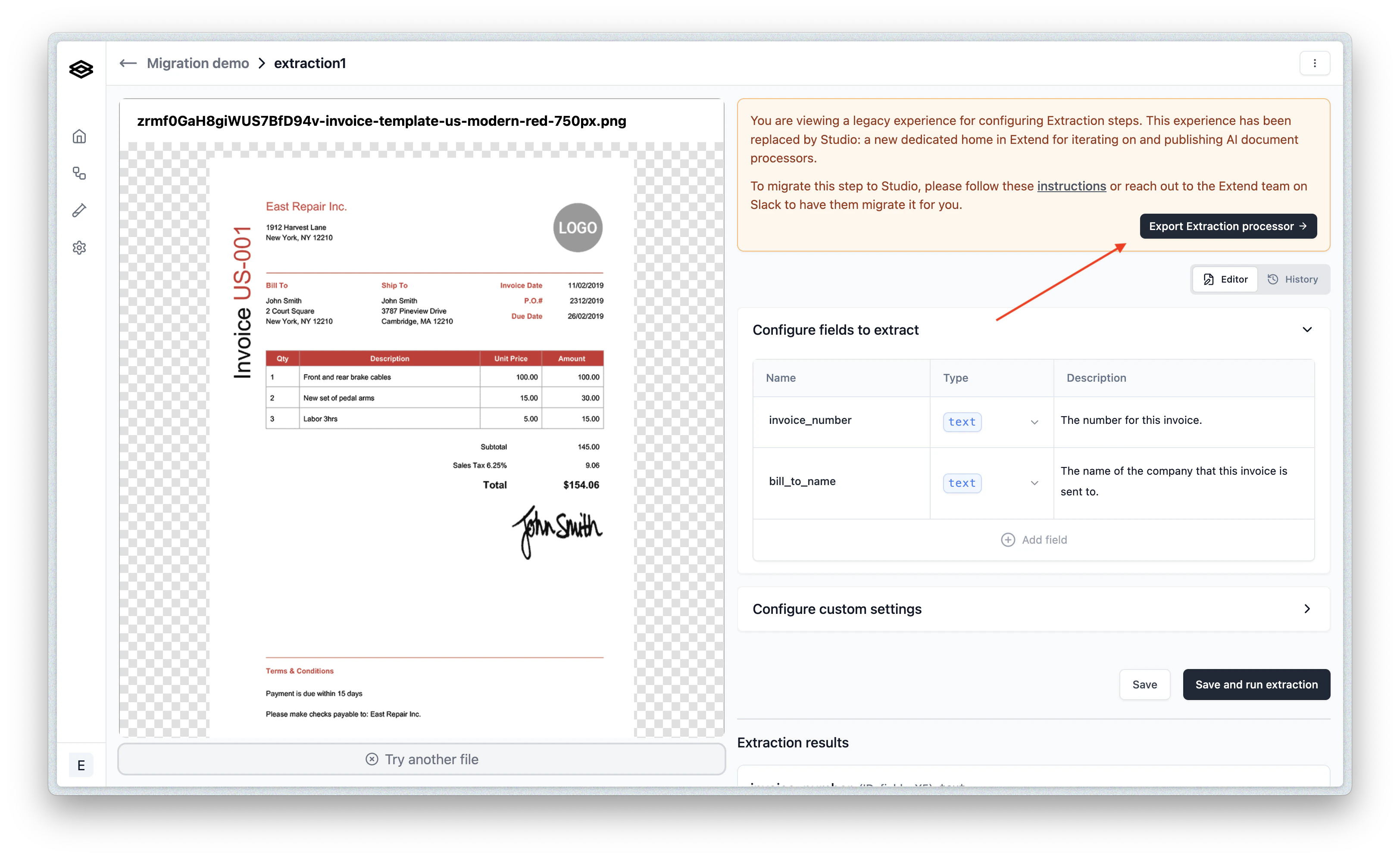
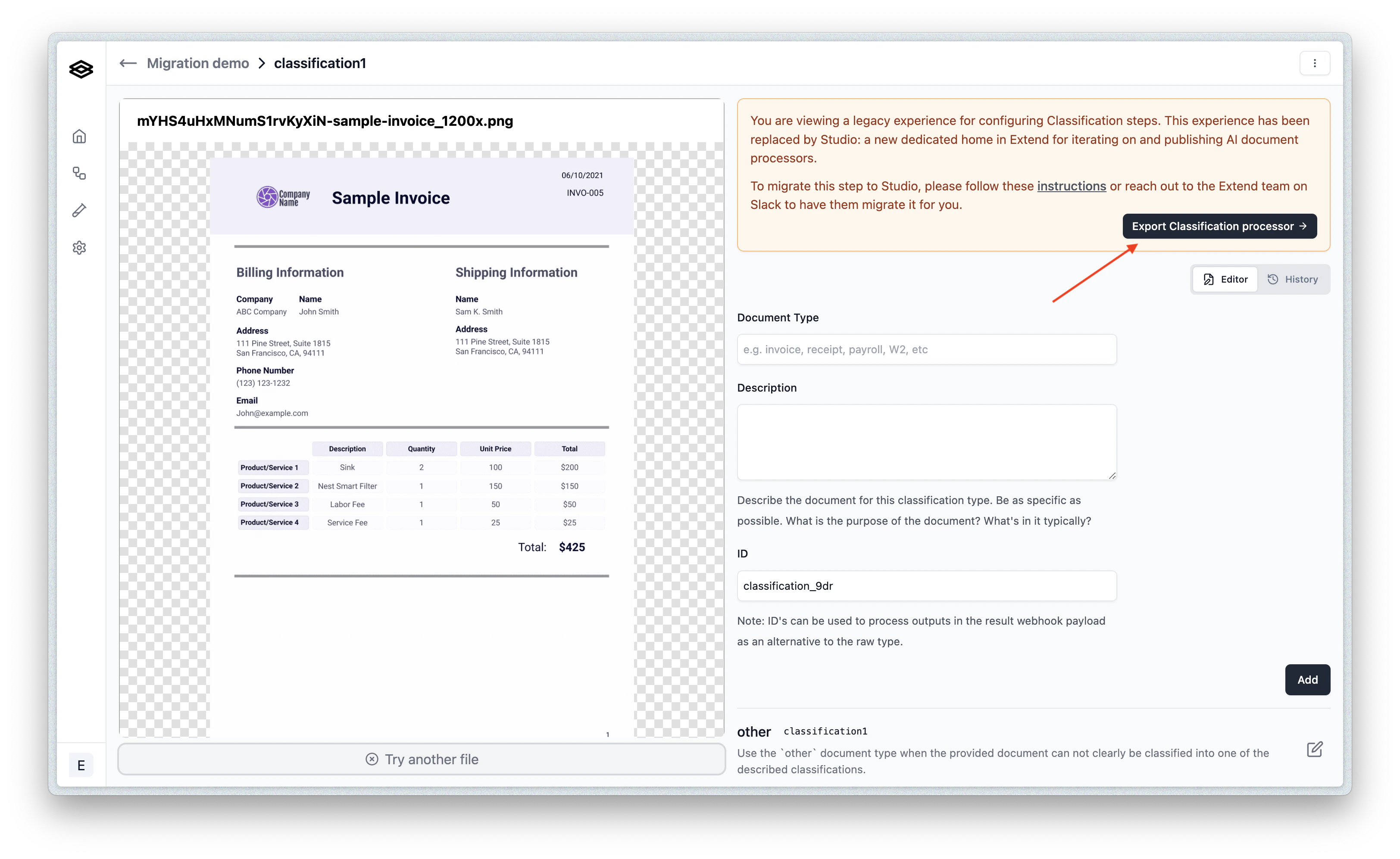
Step 2: Import the processor into Studio
Navigate to the Studio tab in the Extend dashboard. Once open, you will see the options to create new processor. Click the “Create new” dropdown on the Custom Extractor module, and select “from JSON”: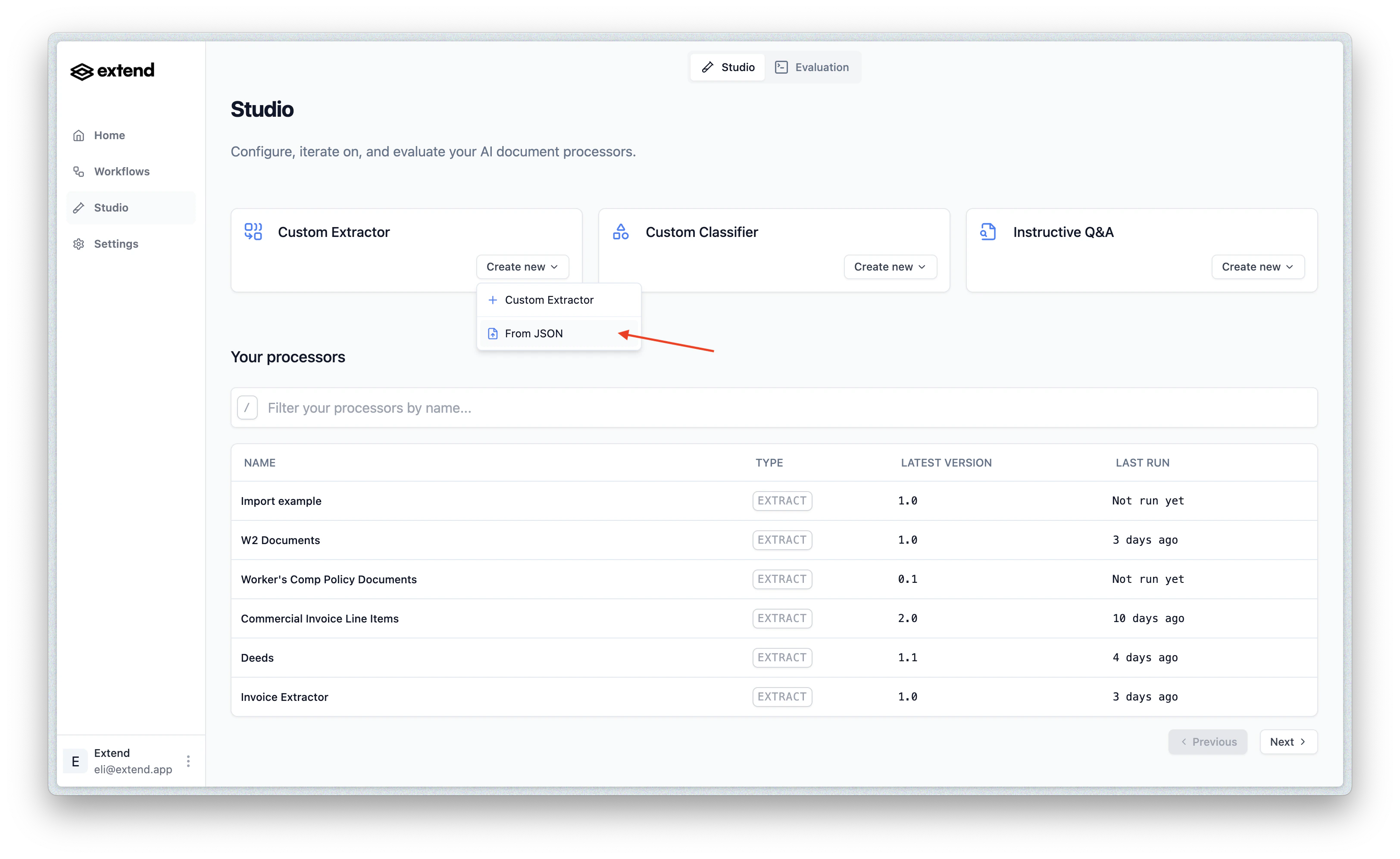
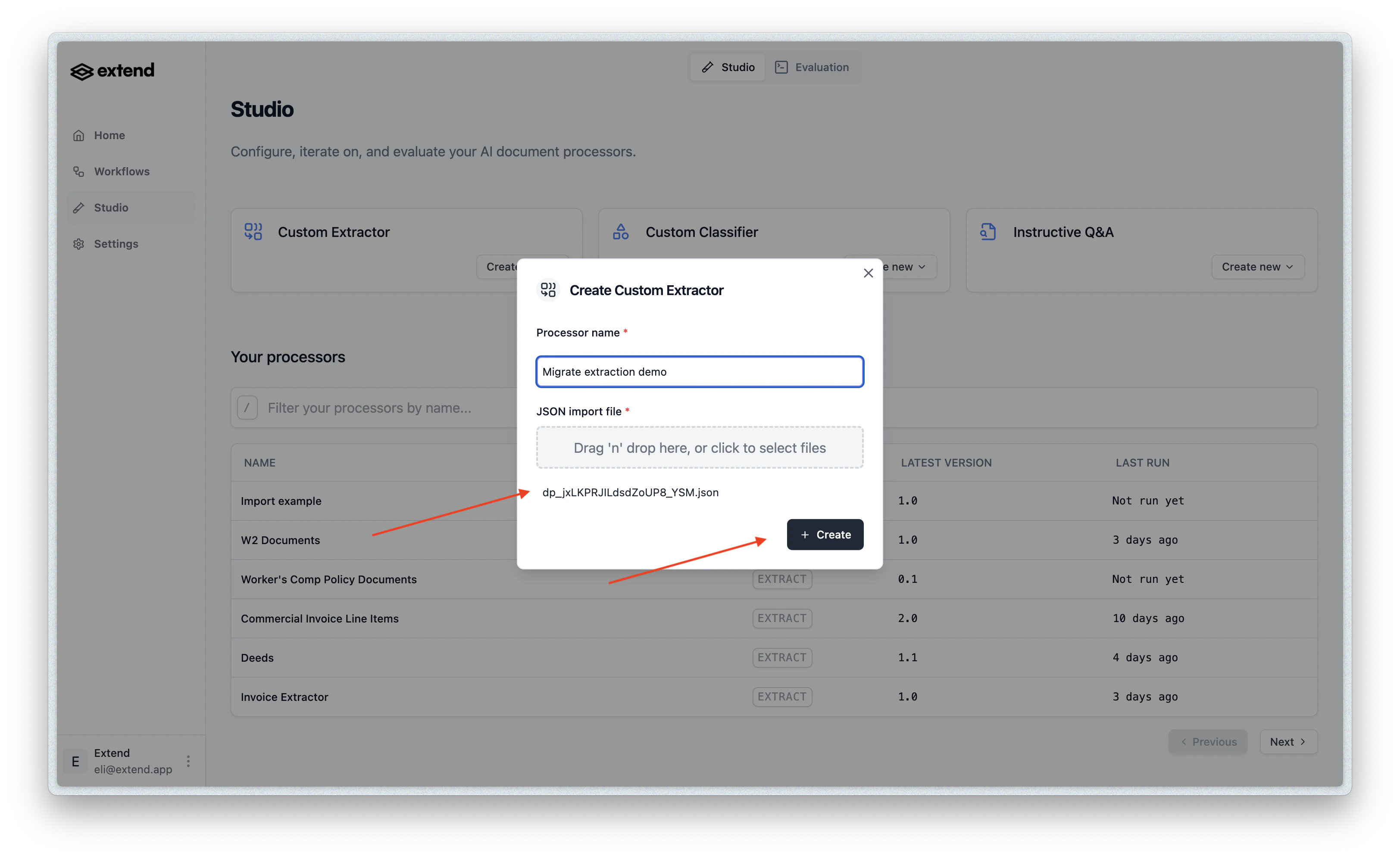
Step 3: Check you work
You should be redirected to a new processor detail page. Please ensure the config looks correct and that you have the correct name for the processor. If everything looks good, go ahead and first click “Save” to save a copy of the draft (or test run against a file if you’d like). Once saved/run, go ahead and click “Publish” to create the first version of the processor: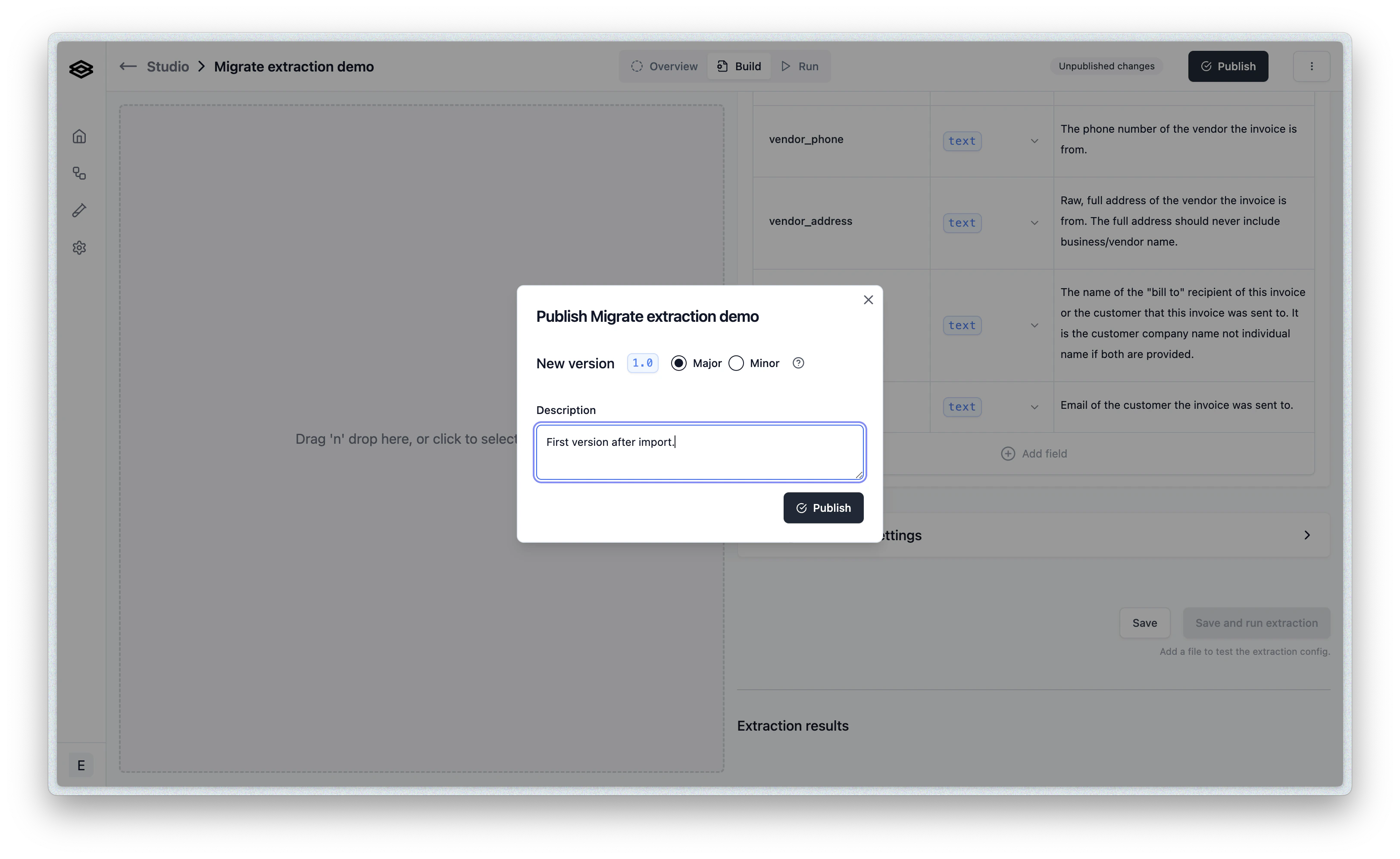
Step 4: Update the workflow to use the new processor
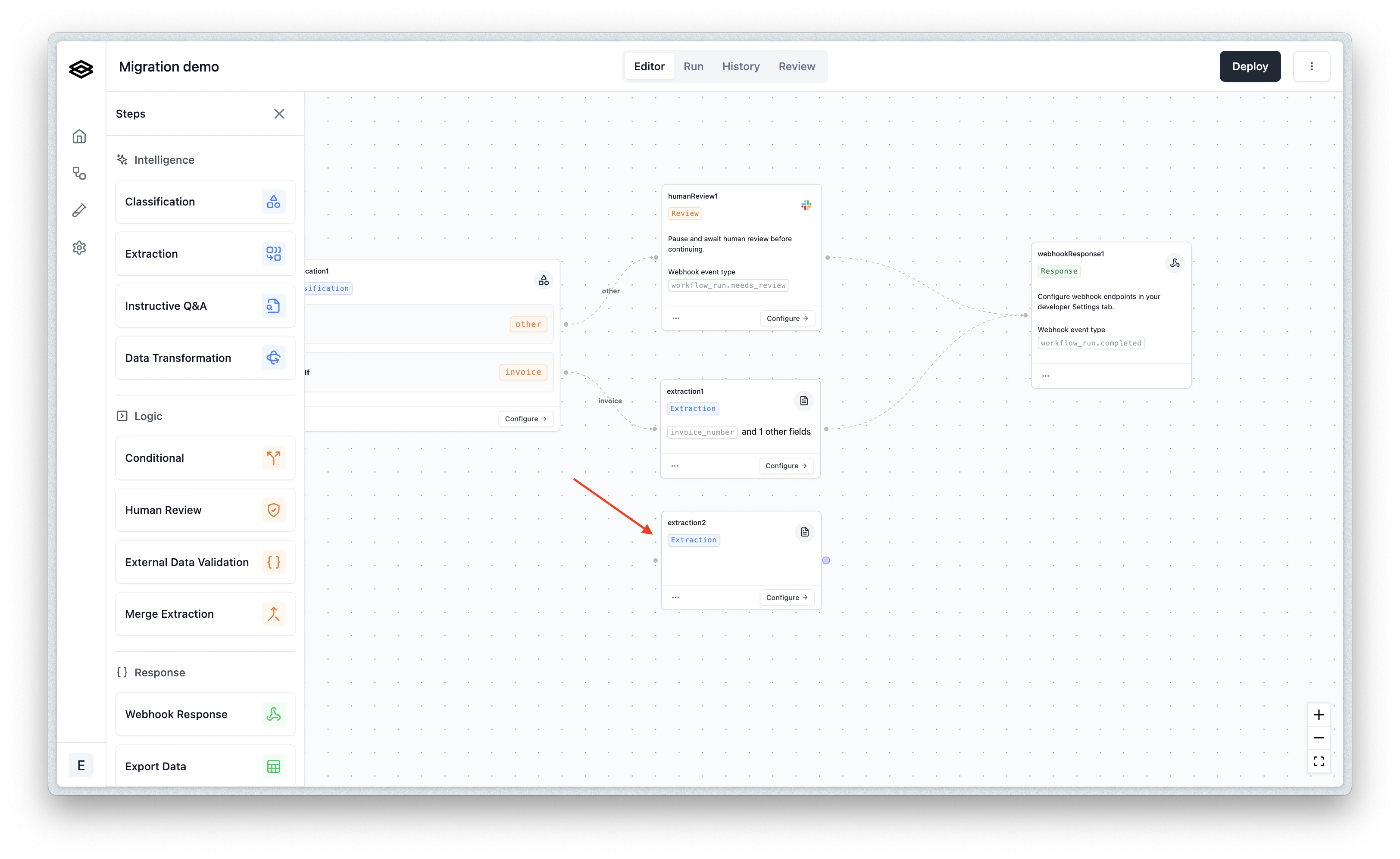
Now let’s navigate back to the workflow we started with. Open the Step menu on the left side so we can add a new extraction step: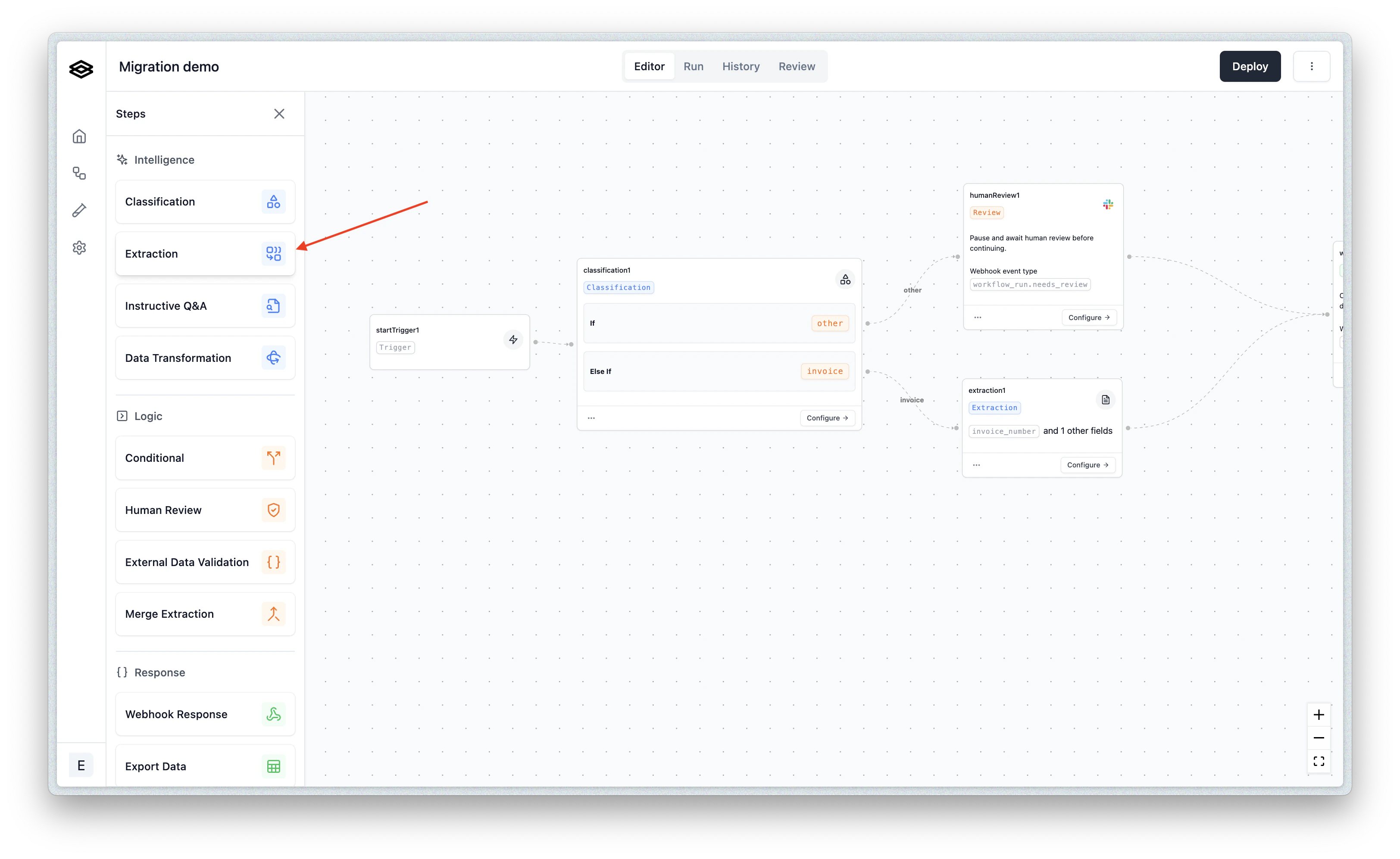
extraction2, the default name for the second extraction step:
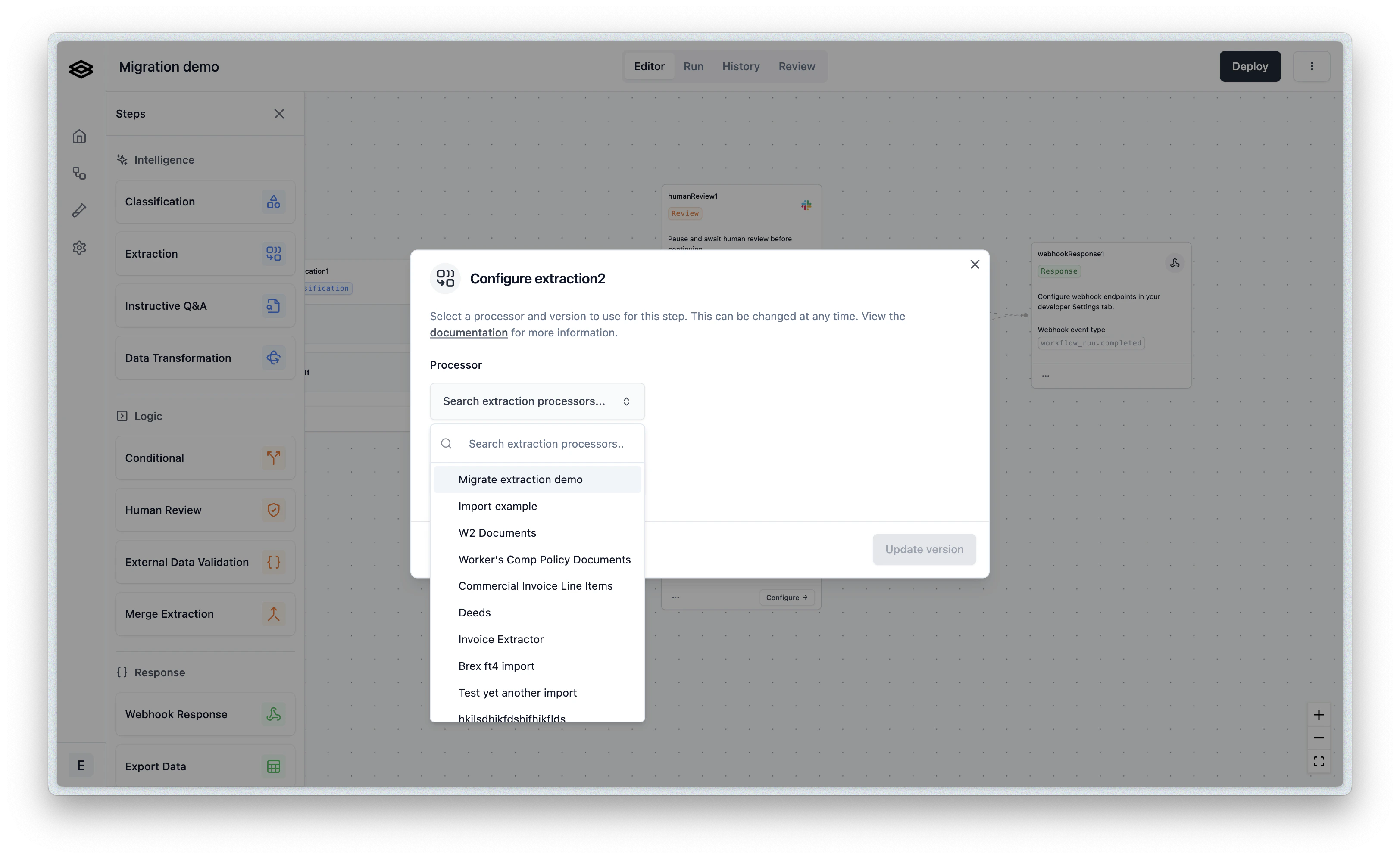
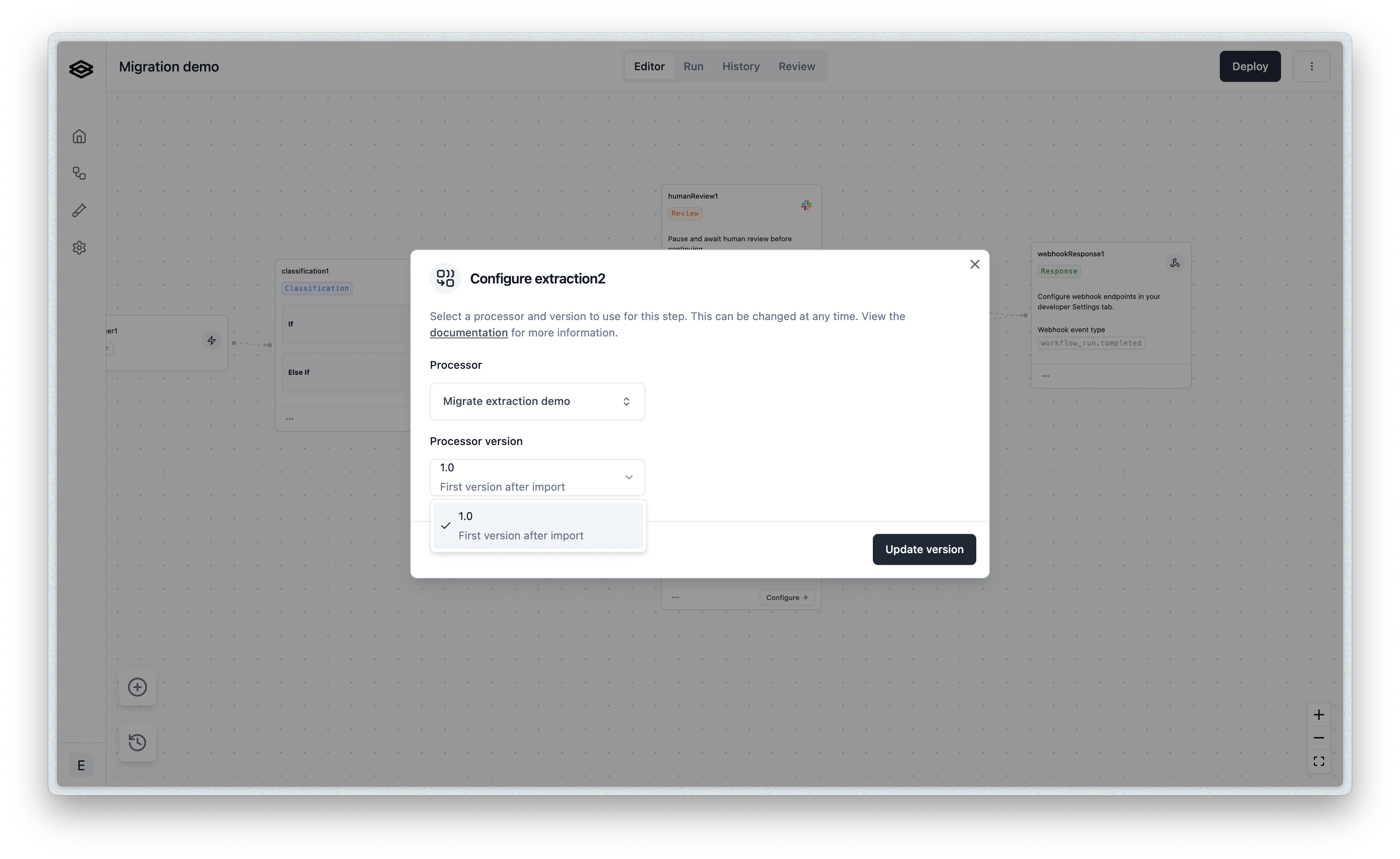
Step 5: Clean up
Now we should delete the legacy step: