
Configuring fields to extract
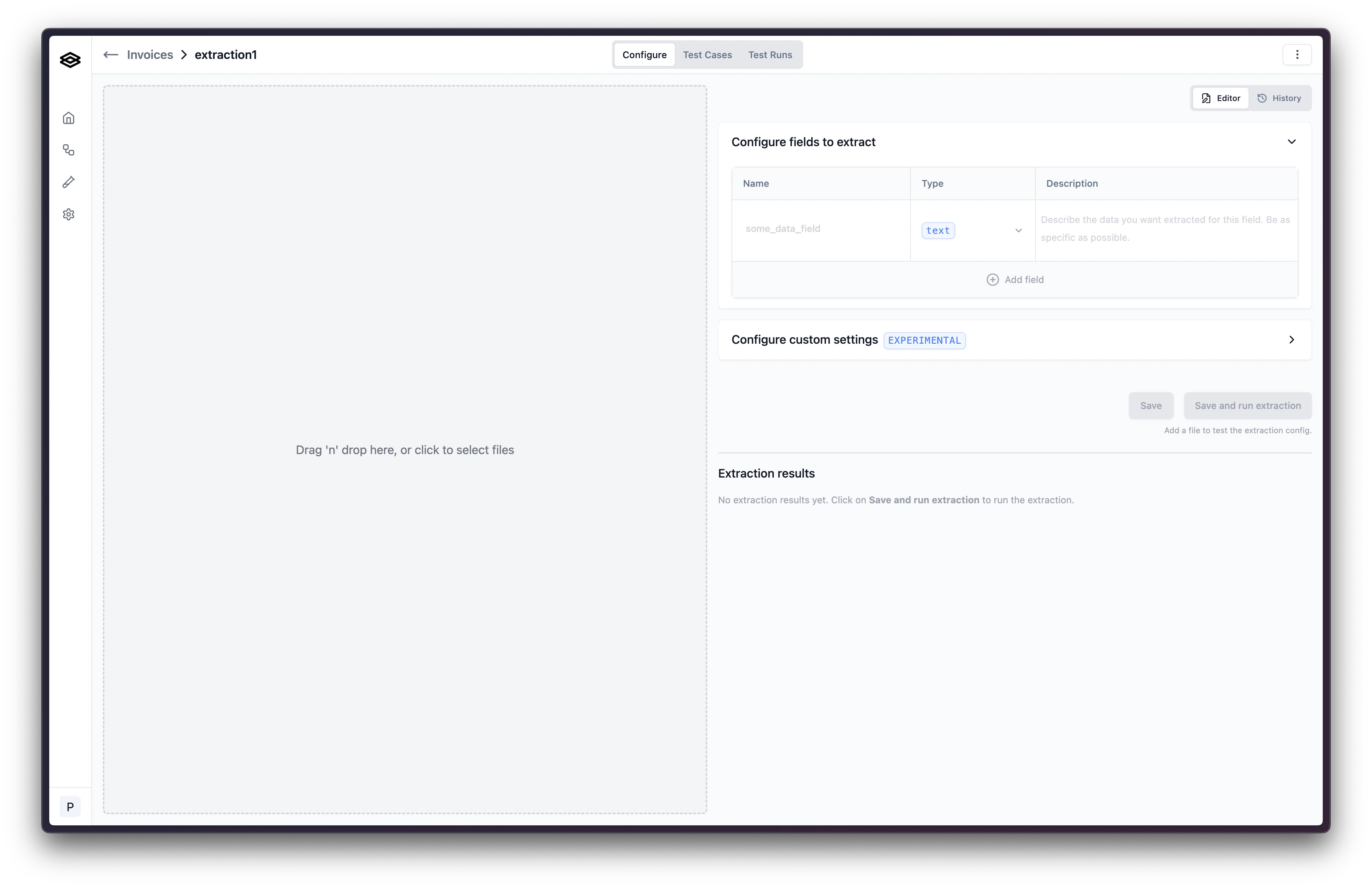
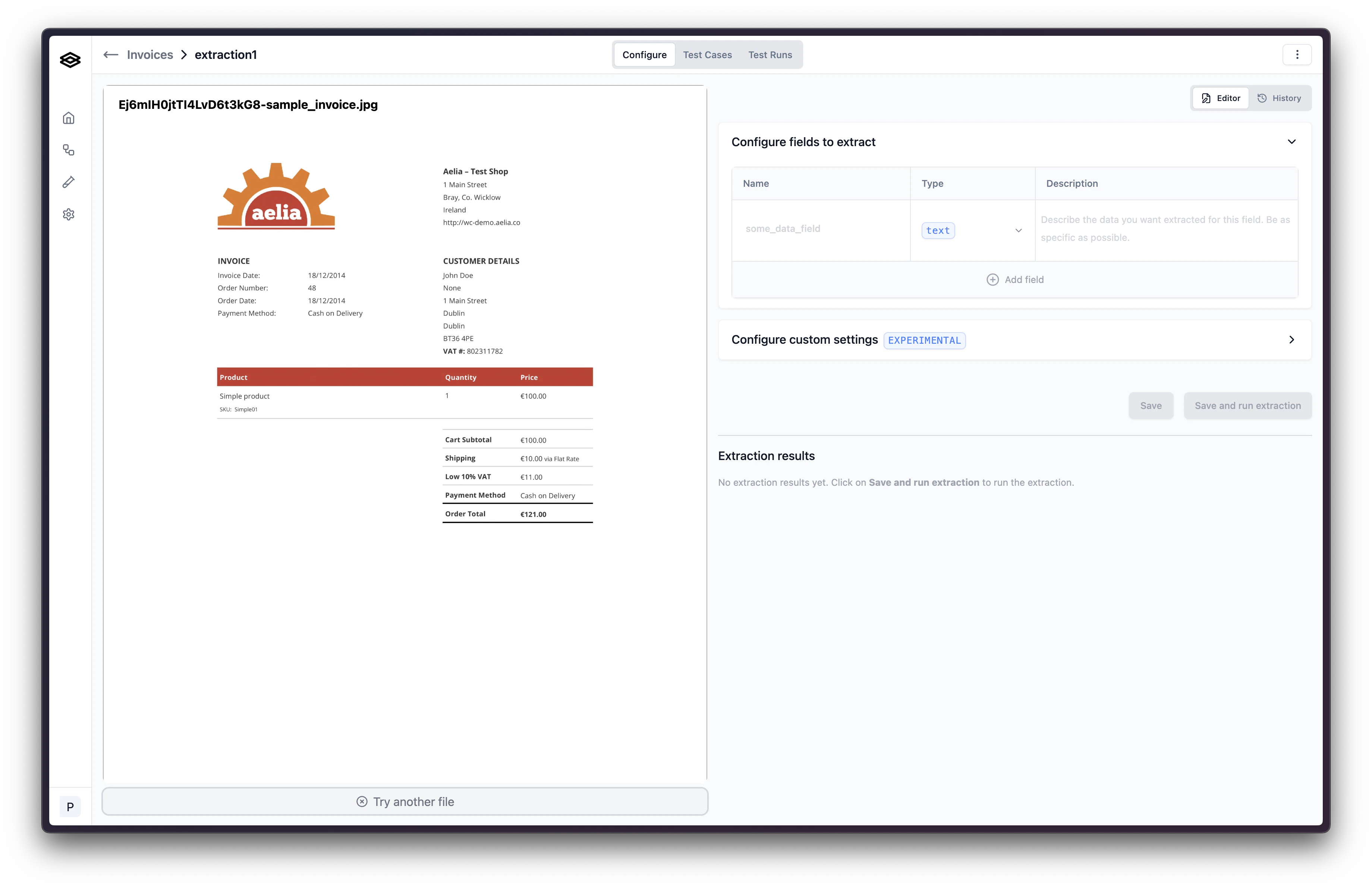
Each field to extract has three components, a name, type, and description. All of these are used in the extraction so it is important to configure them correctly to the best of your ability.- Name: the field name is the name of the field that will be used to reference the extracted data. This field name is used in the extraction and and will be used to reference this value in future steps of the workflow.
- Type: the data type is the type of data that will be extracted from the document. There are seven types of data that can be extracted from a document:
- text
- number
- currency
- boolean
- date
- object
- array
- Description: the description describes the data that will be extracted from the document. This description will be used to find and extract the field.
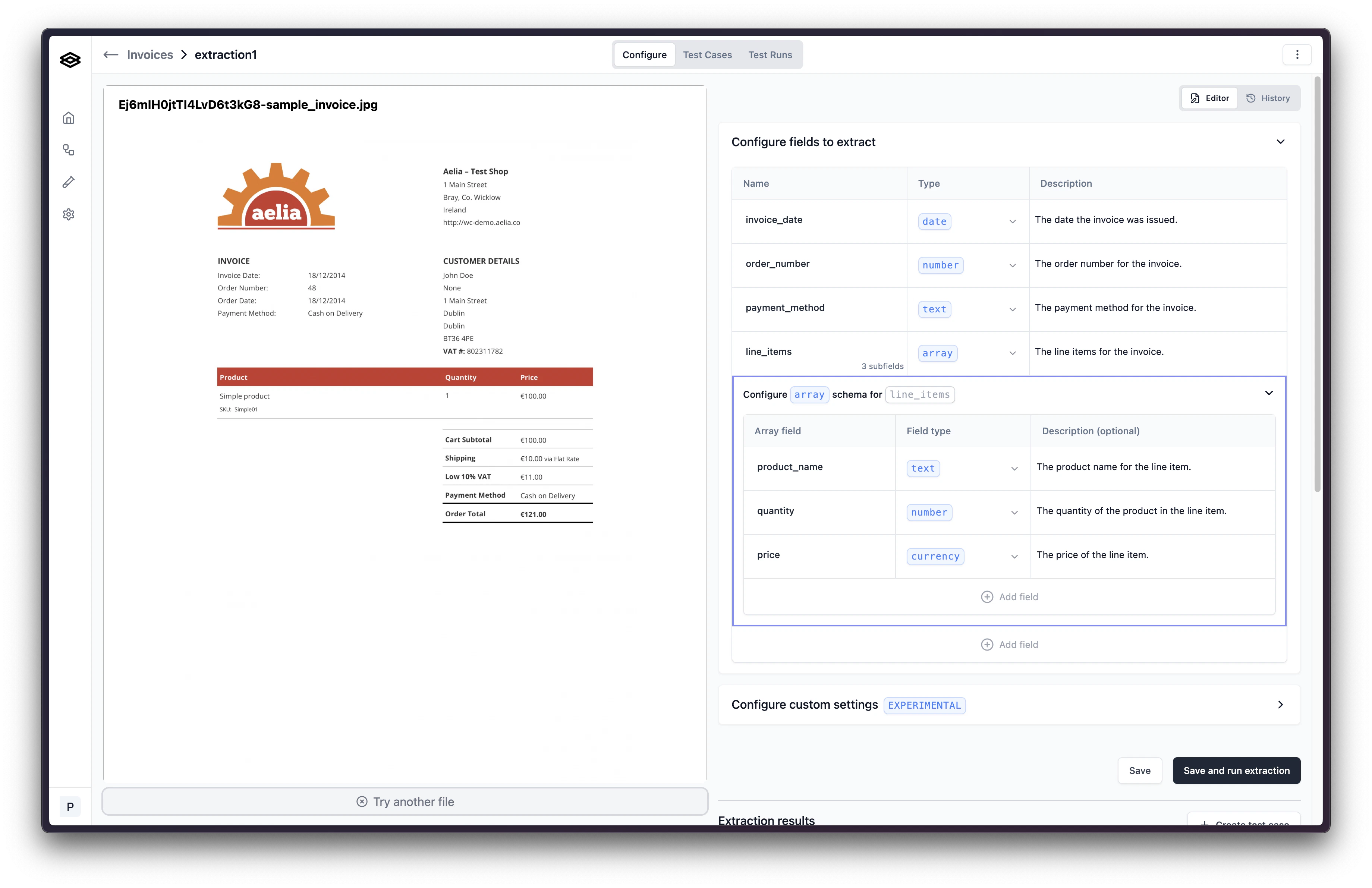
Data types
Text
Use the text data type when you want to extract a string of text from a document. For example, if you want to extract the name of a person from a document, you would use the text data type.Number
Use the number data type when you want to extract a number from a document. For example, if you want to extract the age of a person from a document, you would use the number data type.Currency
Use the currency data type when you want to extract a currency value from a document. For example, if you want to extract the price of a product from a document, you would use the currency data type. This data type will return both the amount and the currency code. For example, if the price of a product is $10.00, the currency data type will return{"amount": 10.00, "iso_4217_currency_code": "USD"}.
Boolean
Use the boolean data type when you want to extract a boolean value from a document. For example, if you want to extract whether a product is in stock from a document, you would use the boolean data type.Date
Use the date data type when you want to extract a date from a document. For example, if you want to extract the date of birth of a person from a document, you would use the date data type.Object
Use the object data type when you want to extract a set of related fields from a document. For example, if you want to extract the address, name, and birth date of a person from a document you would use the object data type.Array
Use the array data type when you want to extract a list of related fields from a document. For example, if you want to extract a list of products that each have a name, price, and quantity from a document you would use the array data type.Configuring Custom Settings
In addition to the fields, you can also configure custom settings for each field. These settings allow you to fine-tune the extraction process to better suit your specific needs. However, please note that these settings are experimental and may not work as expected in all cases. Before using these settings, we recommend consulting with the Extend team to understand their potential impact on the extraction process.Running an extraction
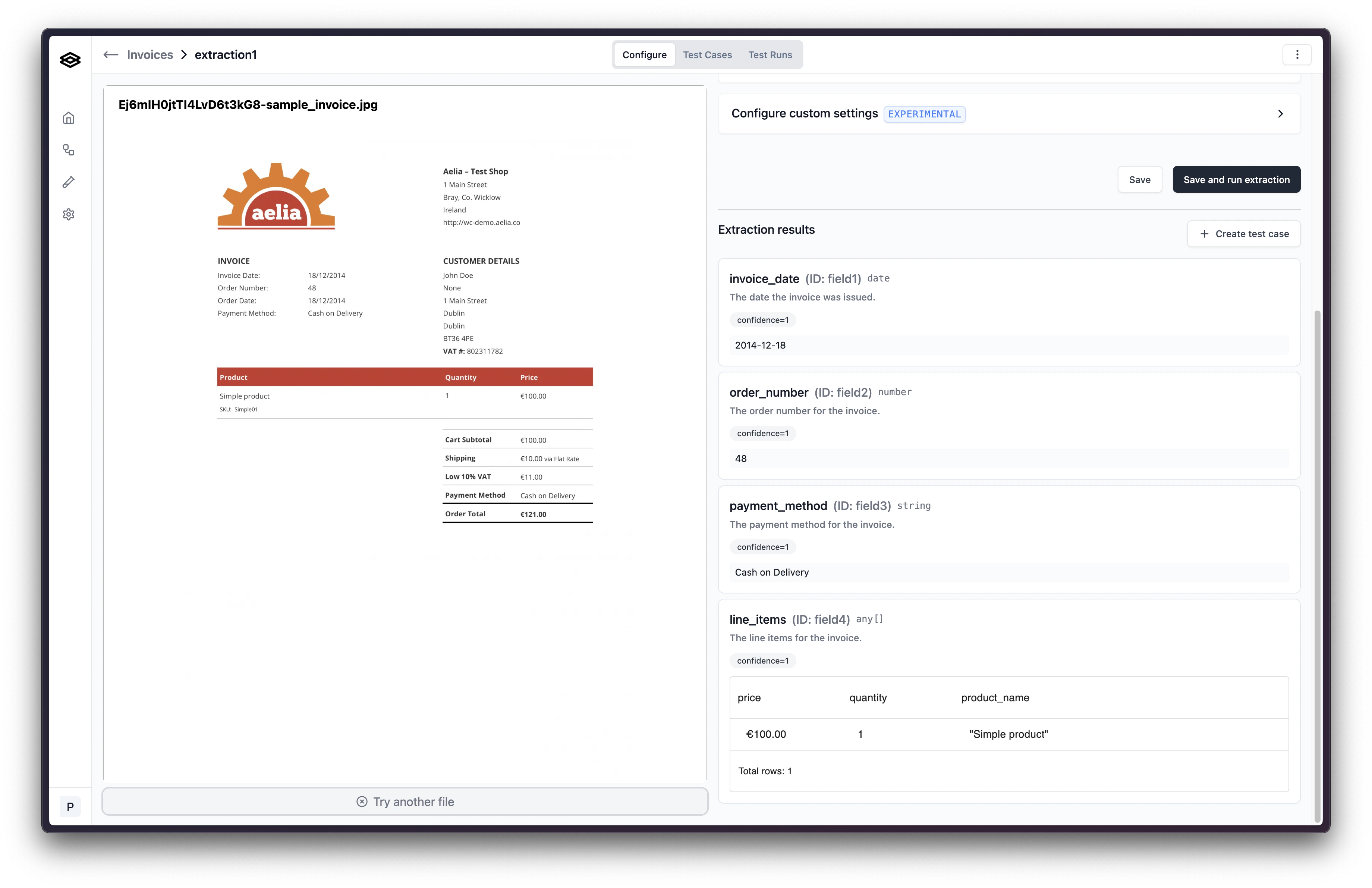
Once you have configured the Extraction step, click the “Save and run” button to save the Extraction step configuration and start the extraction.