> ## Documentation Index
> Fetch the complete documentation index at: https://docs.extend.app/llms.txt
> Use this file to discover all available pages before exploring further.
# Reviewing a Workflow Run
> How to review a workflow run once a document has been sent to review
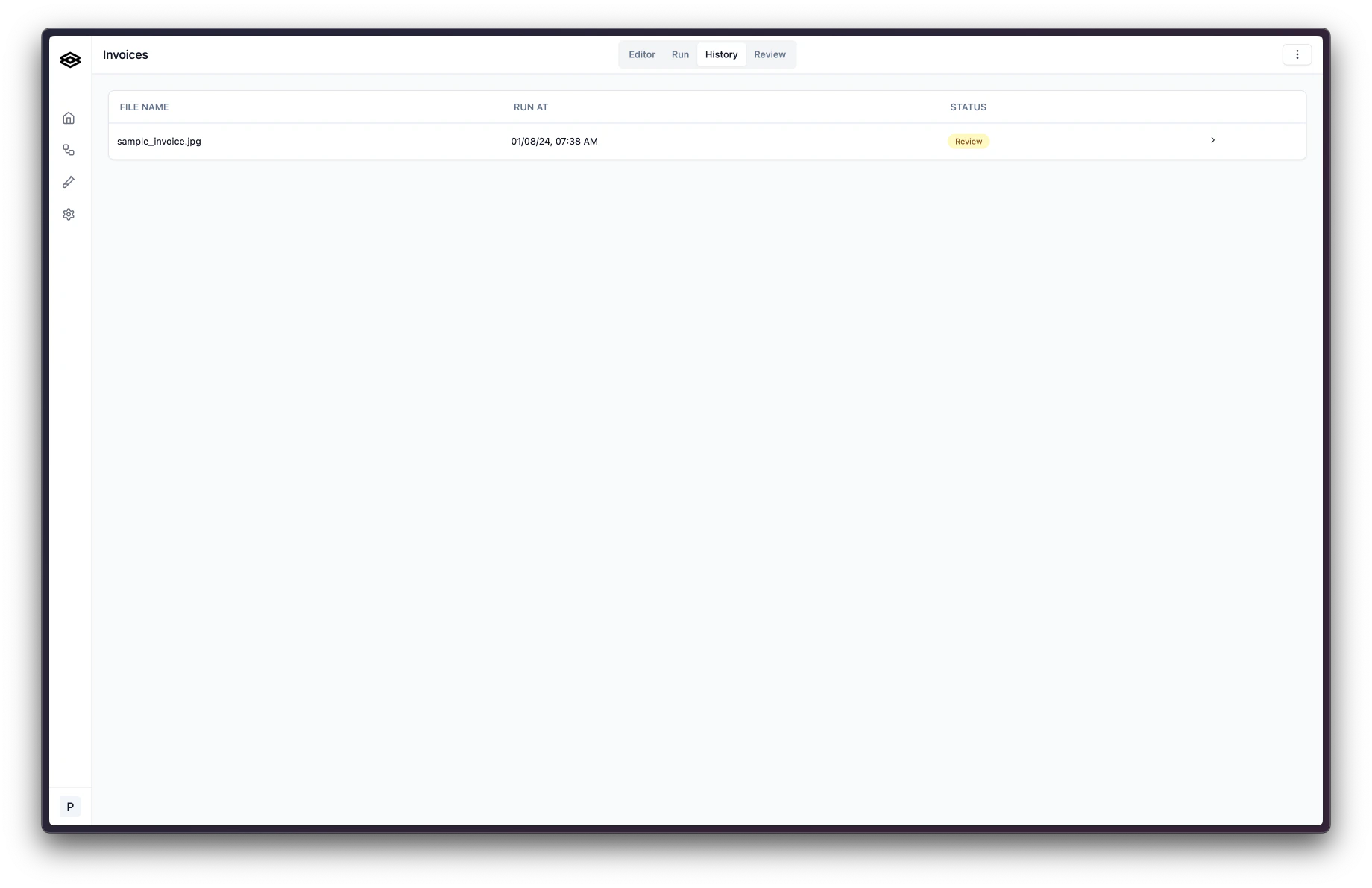
Navigate to the "History" tab of a workflow to see a list of all workflow runs that have been sent to review.
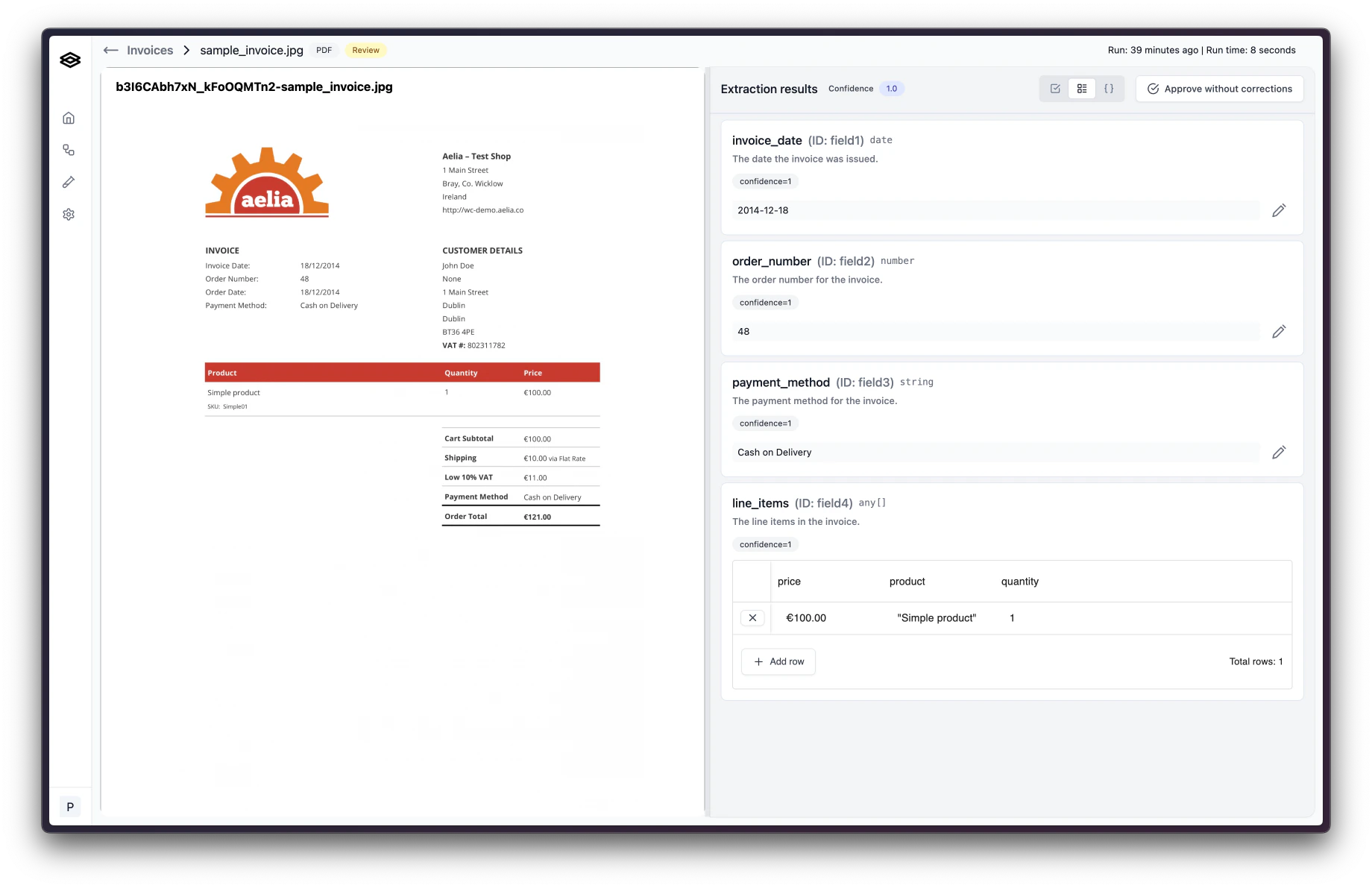
 After clicking on a workflow run in need of review, you will see the document on the left and the extraction results displayed on the right.
 ### Editing and approving a Workflow Run
Check the extracted values to confirm they are correct. If you find an extracted value that is not correct, click the pencil button to start making a correction. For array fields, you can double click on the cell that needs correcting
### Editing and approving a Workflow Run
Check the extracted values to confirm they are correct. If you find an extracted value that is not correct, click the pencil button to start making a correction. For array fields, you can double click on the cell that needs correcting
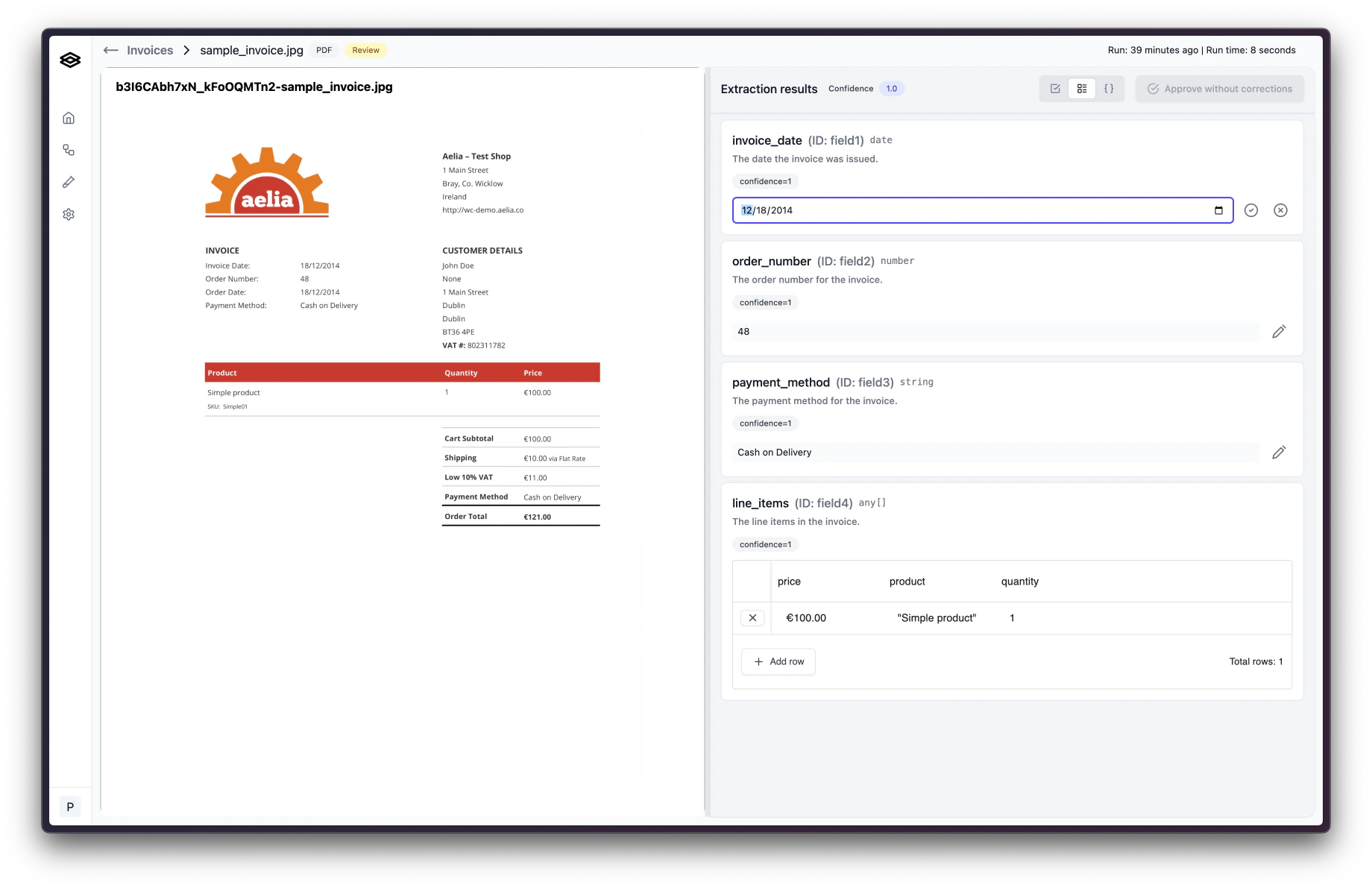 Replace the value with the correct value and then click the checkmark button to update the value. If there shouldn’t be a value, click the circled x button to set the value to `null`.
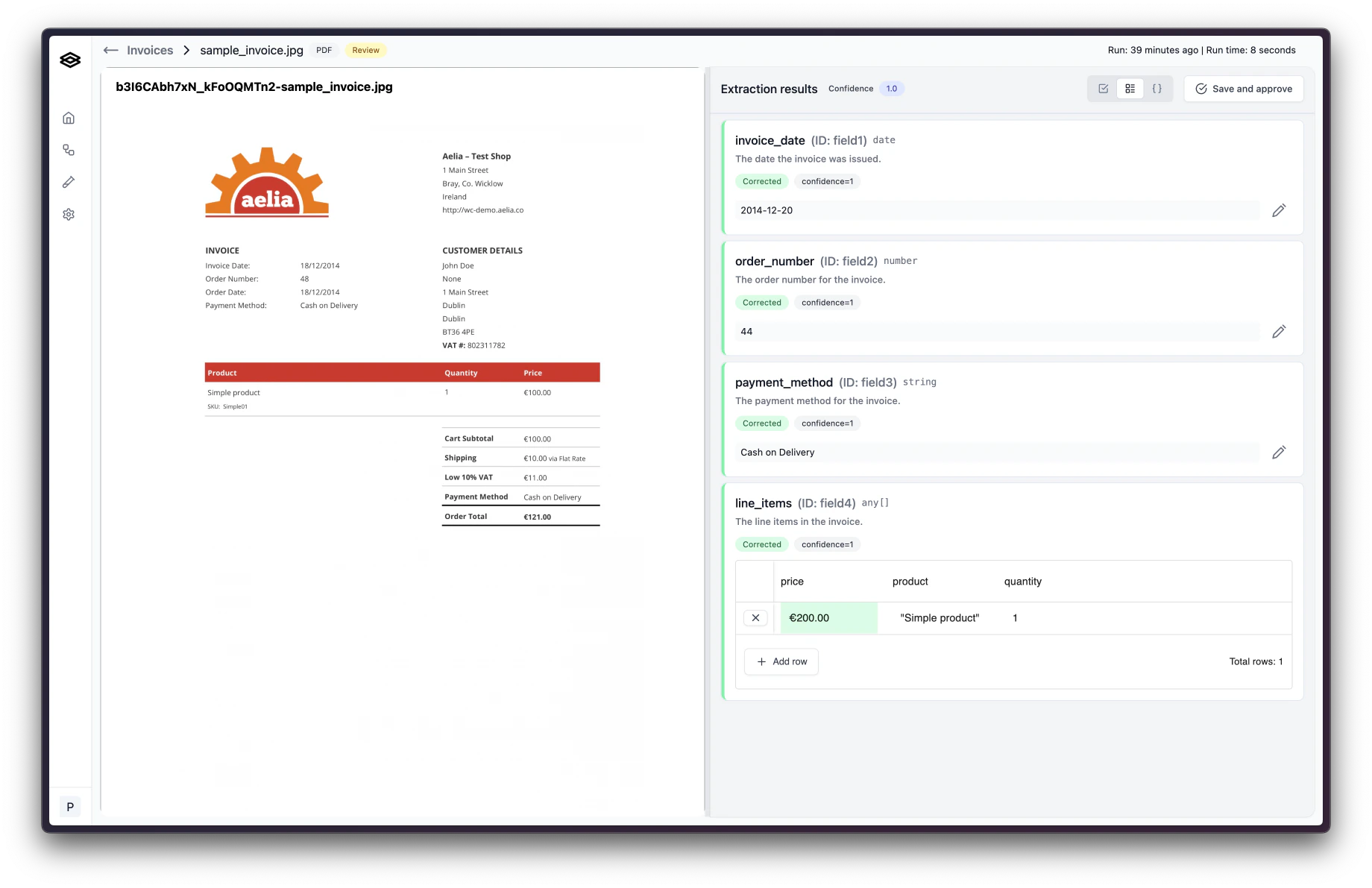 Once you’ve made all the necessary corrections, click “Save and approve”. A dialog will appear asking you to explain your corrections.
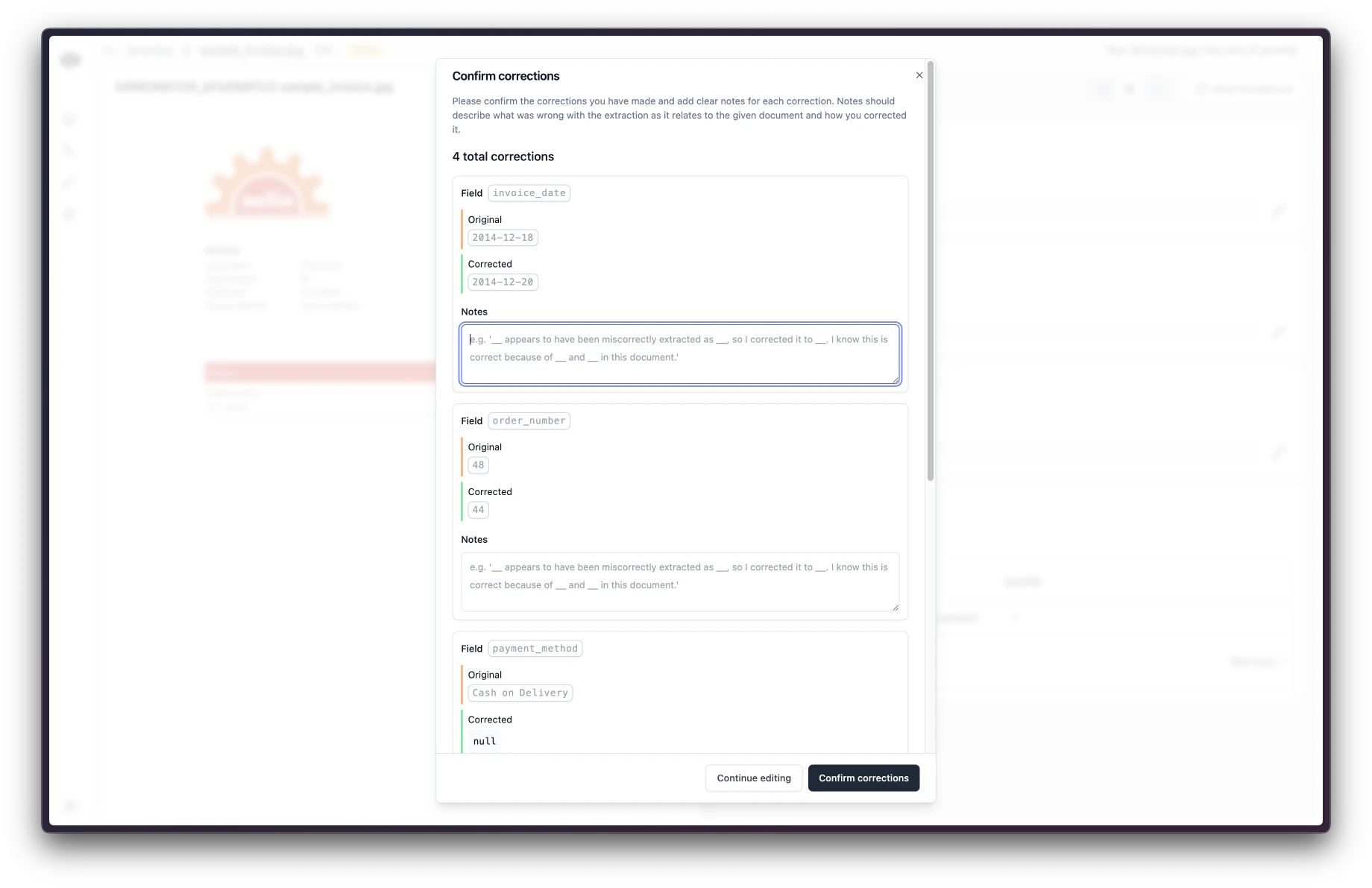 These explanations are used to improve the extraction accuracy so it is important that you clearly and concisely explain what was wrong, what is right, and how you know.
Once finished, click “Confirm corrections” and you are done! The workflow run will be updated with the new values.
### Rejecting a Workflow Run
If a workflow run is rejected, it will not trigger subsequent steps and the final processed data will not be sent to your downstream systems. However, developers can still consume rejected run data by listening for the `workflow_run.rejected` event which is listed in the [webhook events](/api-reference/webhooks/events#event-types).
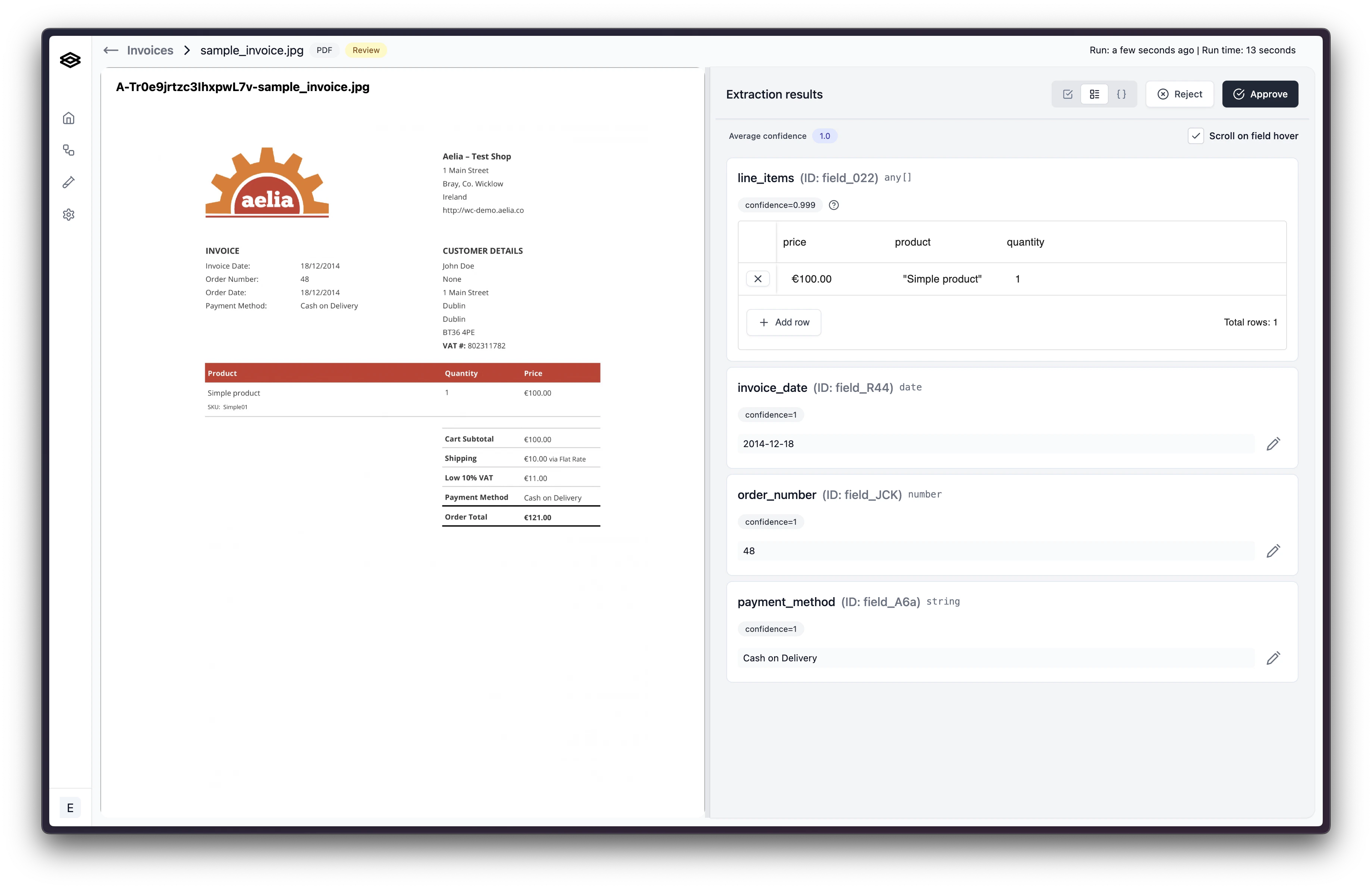
If you find that the document is not valid and should not be processed further, you can reject the workflow run. To do this, click the “Reject” button in the top right corner of the review page.
These explanations are used to improve the extraction accuracy so it is important that you clearly and concisely explain what was wrong, what is right, and how you know.
Once finished, click “Confirm corrections” and you are done! The workflow run will be updated with the new values.
### Rejecting a Workflow Run
If a workflow run is rejected, it will not trigger subsequent steps and the final processed data will not be sent to your downstream systems. However, developers can still consume rejected run data by listening for the `workflow_run.rejected` event which is listed in the [webhook events](/api-reference/webhooks/events#event-types).
If you find that the document is not valid and should not be processed further, you can reject the workflow run. To do this, click the “Reject” button in the top right corner of the review page.
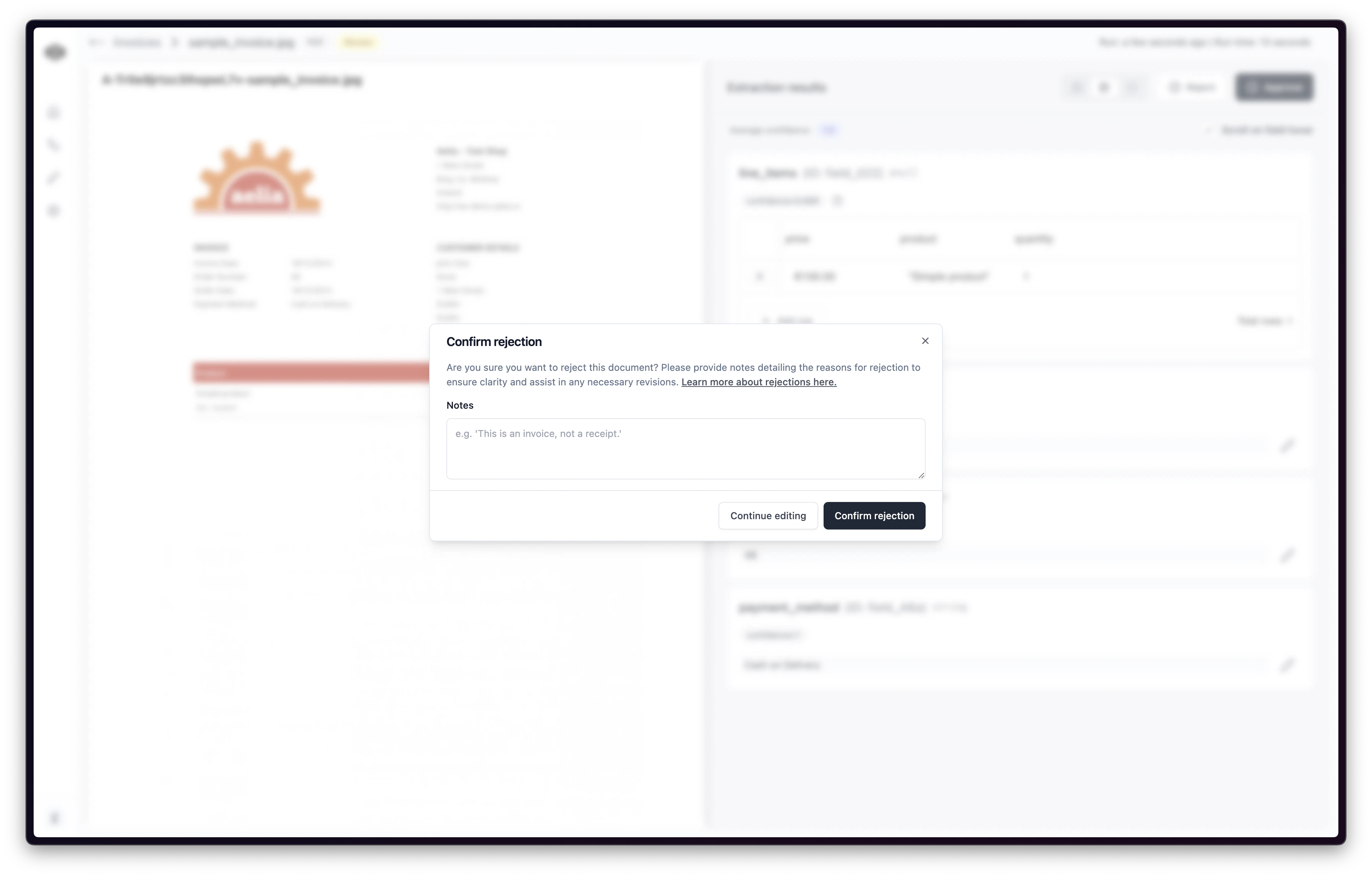
 You can then add a note explaining why the document is being rejected. Once you’ve added a note, click “Confirm rejection” and the workflow run will be marked as rejected.
 ### Re-classifying a Workflow Run
If a document was classified incorrectly, it can be reclassified during human review. To do this, select a new classification value from the dropdown and click “Save and re-classify”. Upon confirmation, the document will be re-classified and the workflow run will be restarted at the classification step using the corrected classification.
**Please note:** Re-classifying a document will cause previous step runs stemming from the incorrect classification to be removed from the workflow run.
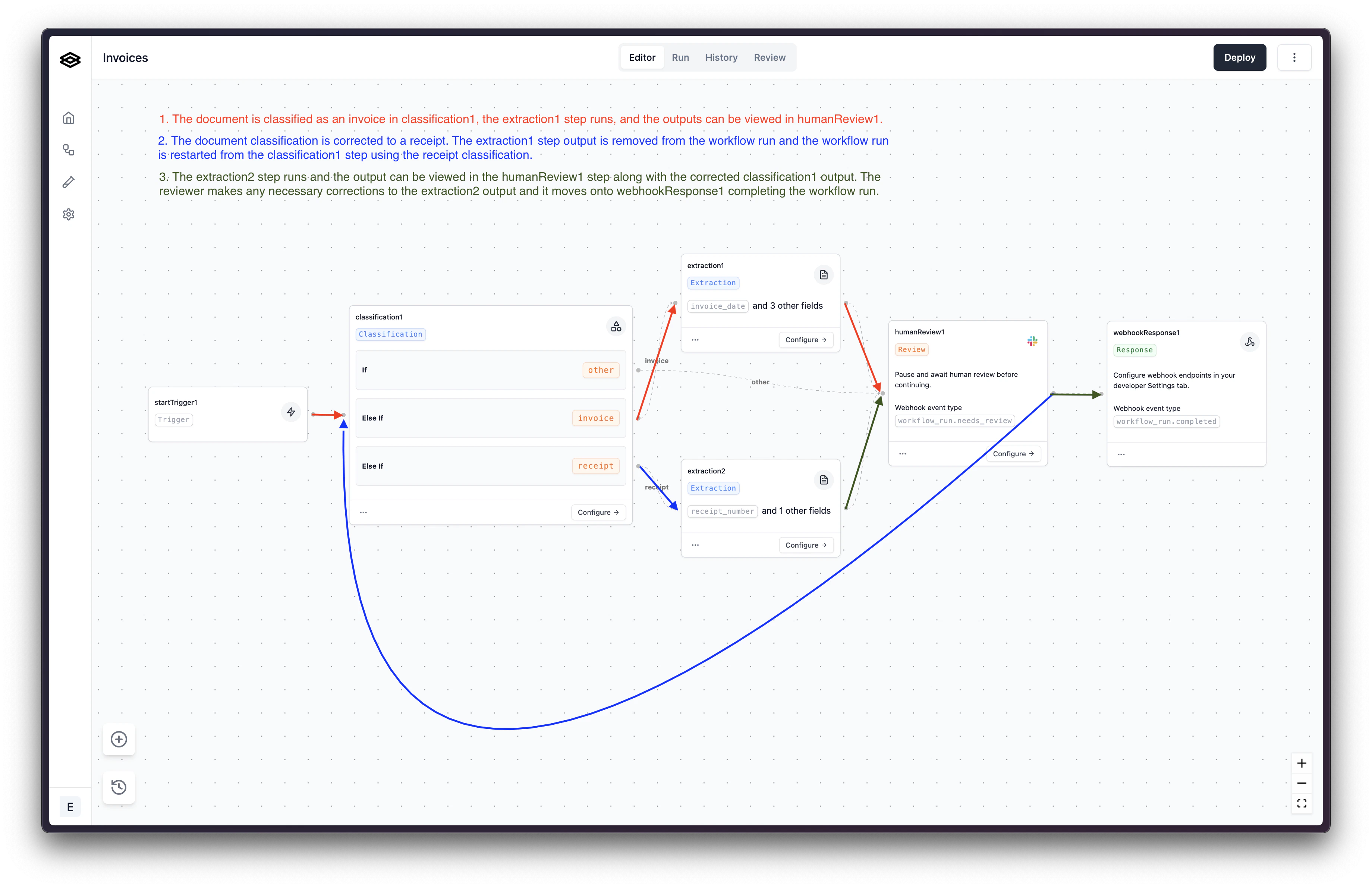
Let's walk through an example using the workflow below.
### Re-classifying a Workflow Run
If a document was classified incorrectly, it can be reclassified during human review. To do this, select a new classification value from the dropdown and click “Save and re-classify”. Upon confirmation, the document will be re-classified and the workflow run will be restarted at the classification step using the corrected classification.
**Please note:** Re-classifying a document will cause previous step runs stemming from the incorrect classification to be removed from the workflow run.
Let's walk through an example using the workflow below.
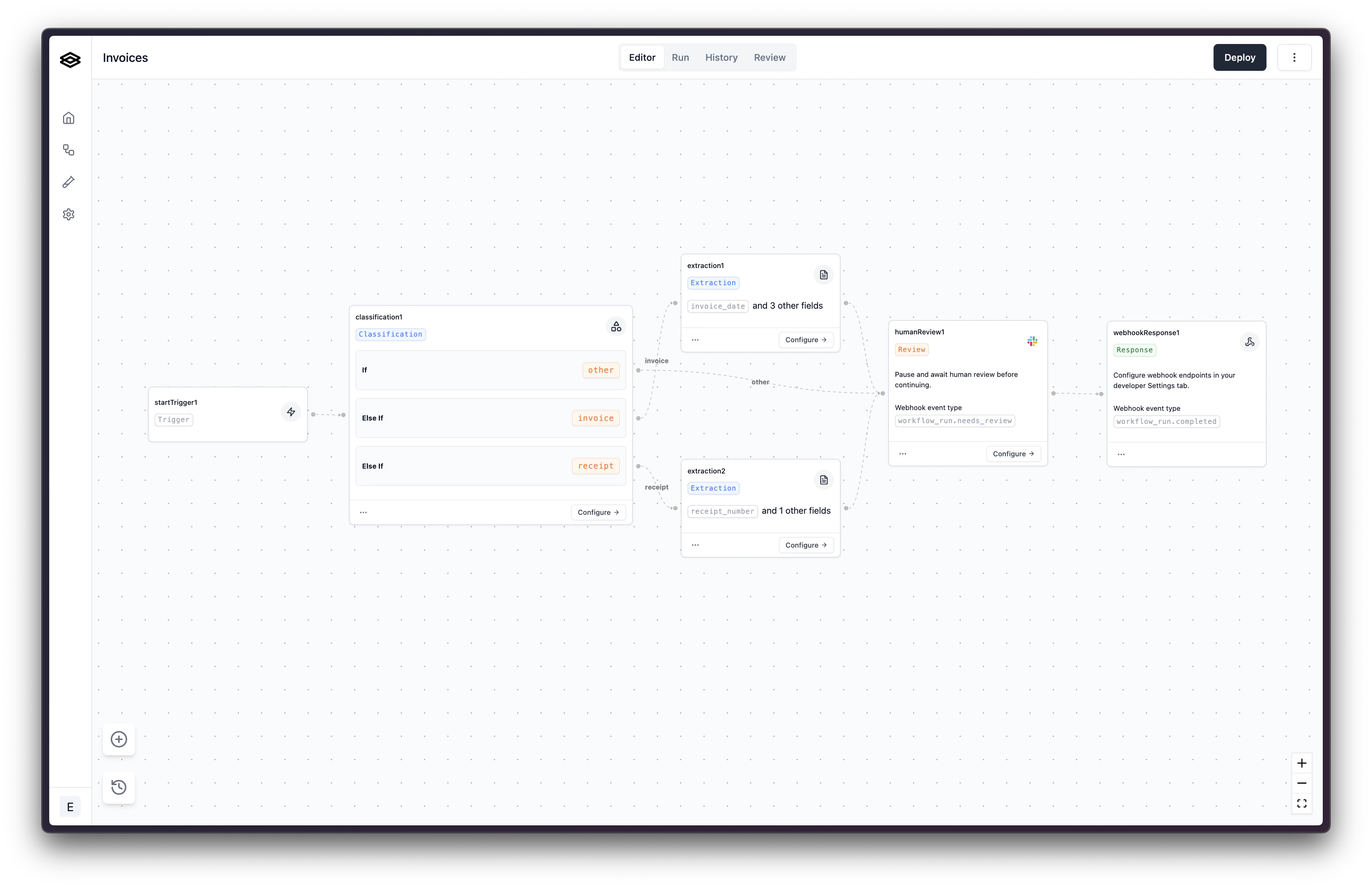 A document is sent to the workflow and is classified as an `invoice` in the `classification1` step before being sent to `humanReview1`. Although the document was correctly classified as an `invoice`, lets pretend it's actually a `receipt` and we want to fix that classification.
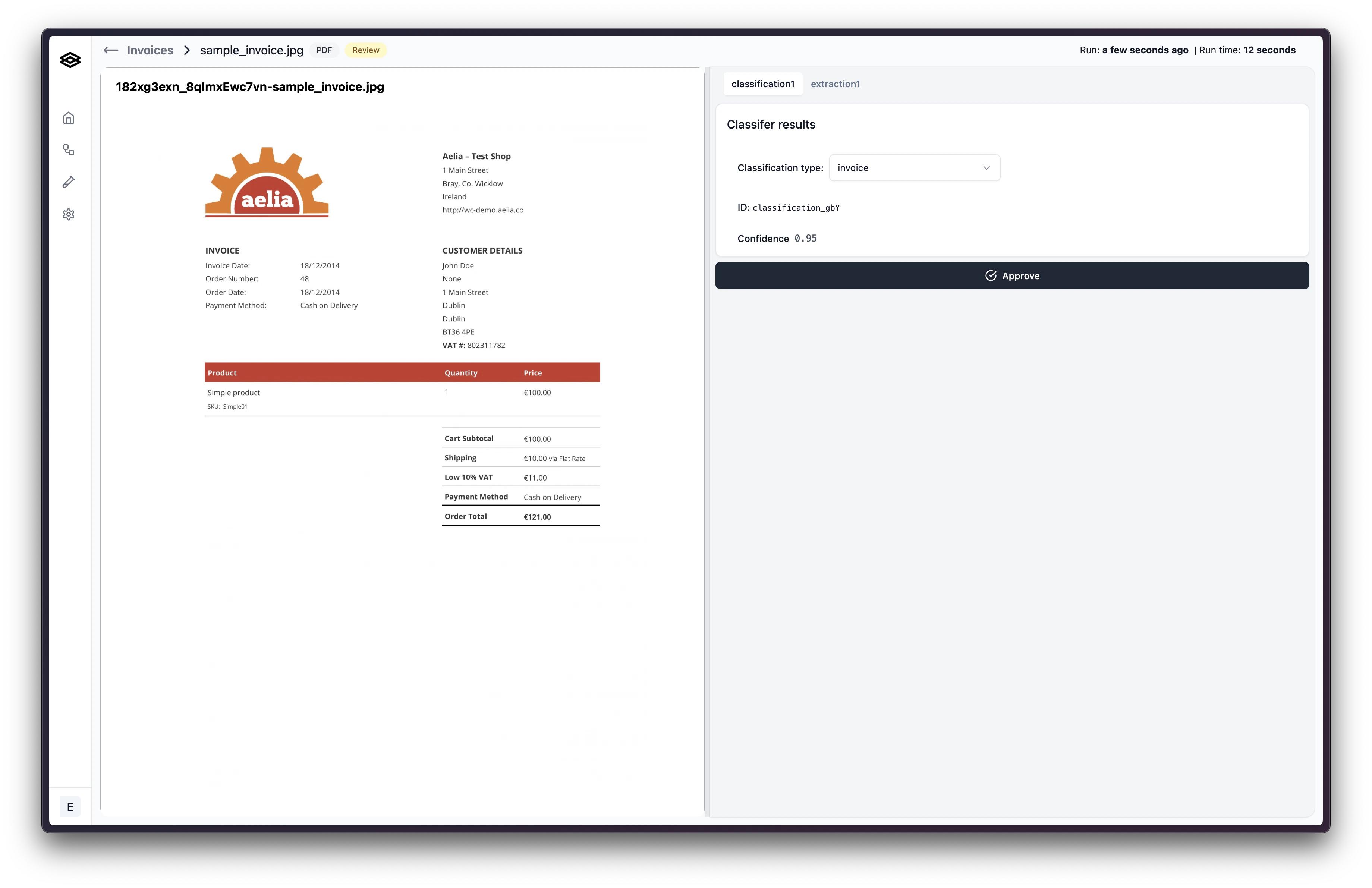
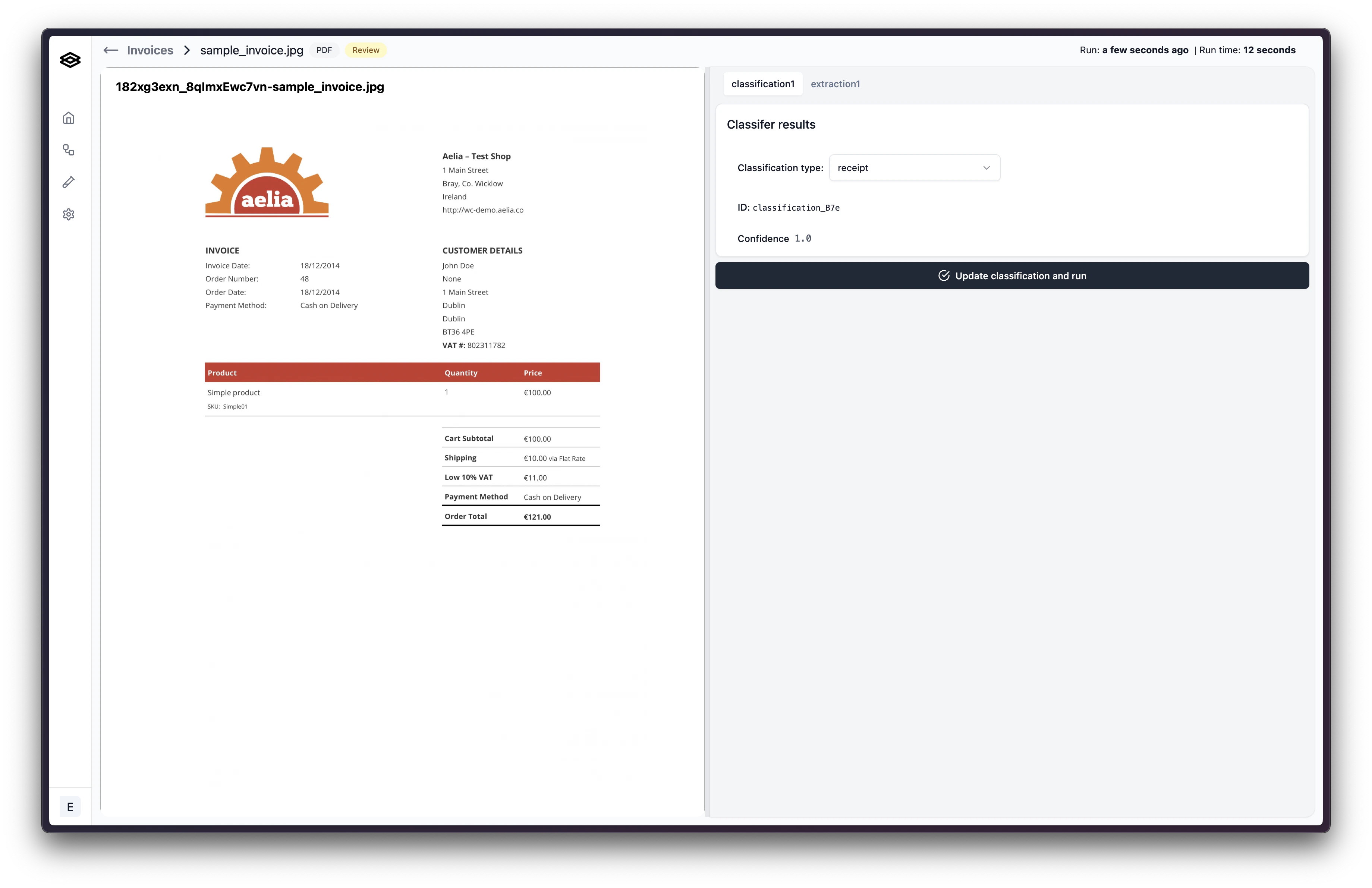 After re-classifying the document as a `receipt`, the workflow run will be restarted at the `classification1` step and the previous extraction step run `extraction1` stemming from the incorrect classification will be removed from the workflow run. The document will then be processed by the `extraction2` step and go into `humanReview1` step again where the updated classification and output from `extraction2` step can be viewed.
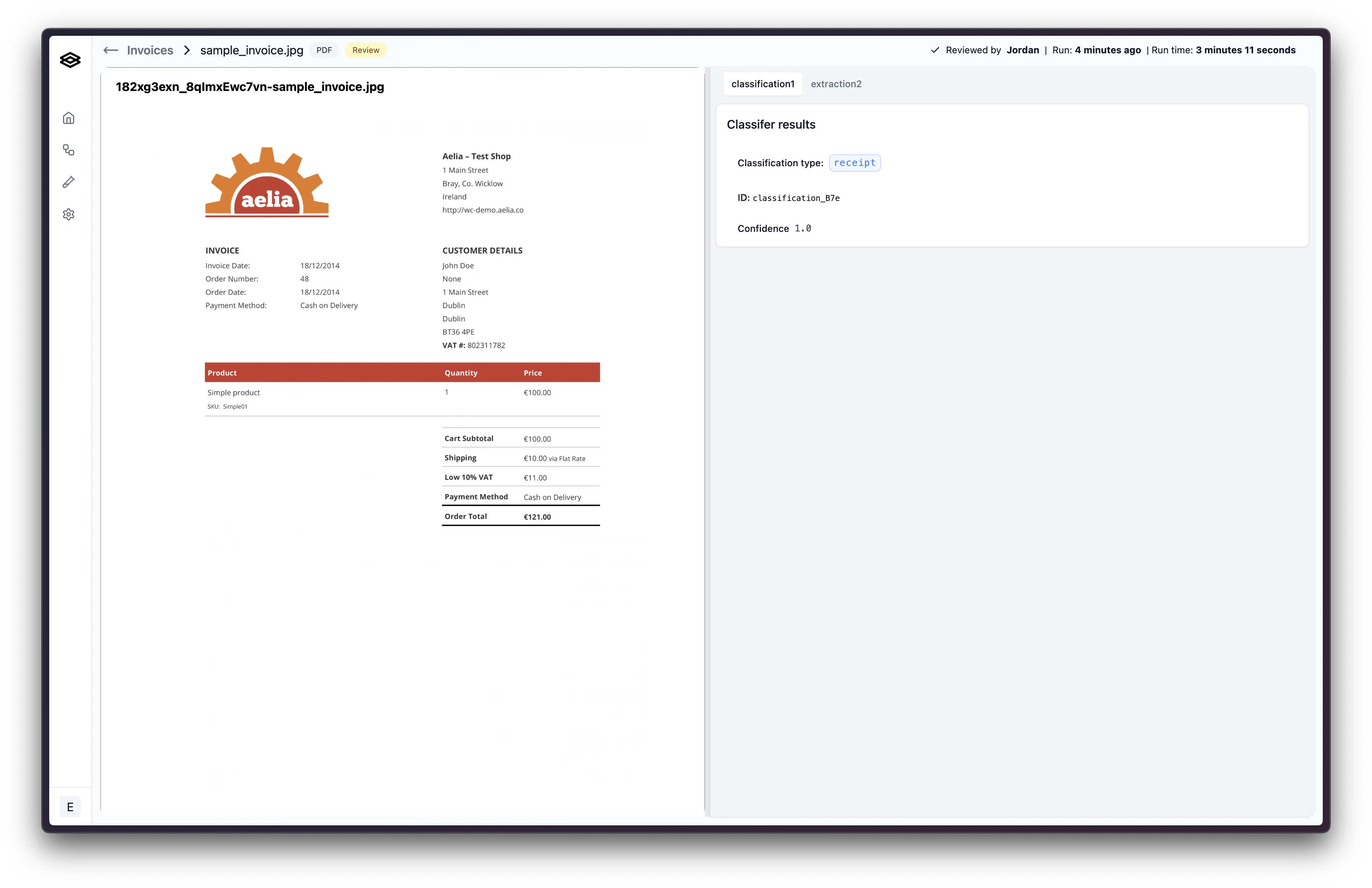
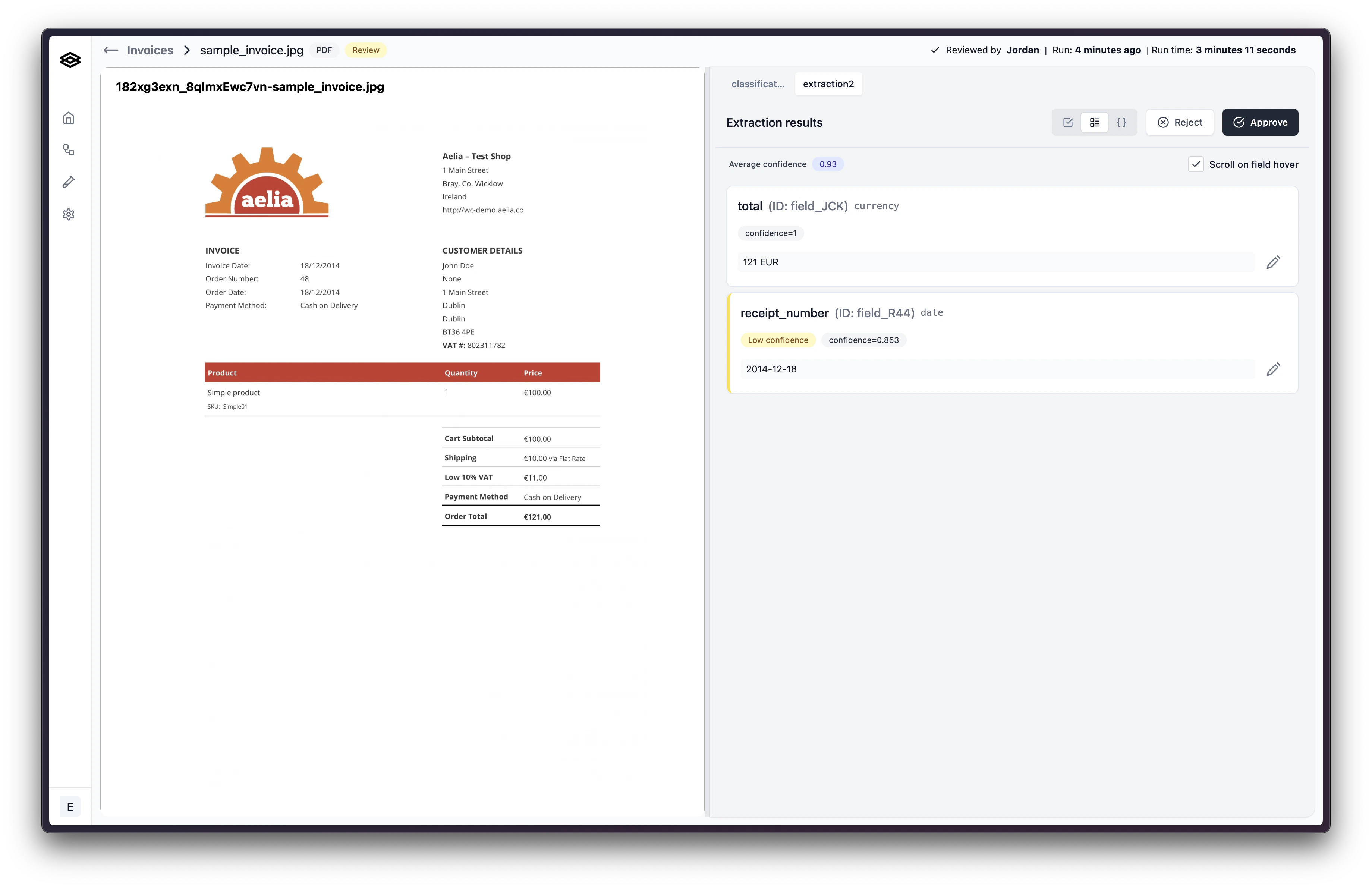 So to review, re-classifying a document will cause previous step runs stemming from the incorrect classification to be removed from the workflow run and the workflow run will be restarted at the classification step using the corrected classification. See the image below for a review of the re-classification example.